Starlink Setup – Enabling Location Data on the Local Network
All solutions described in this repository rely on the Starlink antenna making its position data available on the local network. This configuration is performed using the official Starlink mobile app and is required whether you are using:
- PredictWind DataHub
- SignalK
- OpenCPN (direct or indirect)
- Custom scripts consuming Starlink location data
Accessing the Location Settings in the Starlink App
- Open the Starlink mobile app
- On the main screen, tap the menu icon with two horizontal lines (top-left)
- Scroll to the bottom of the page and tap the “i” (information) icon
- Scroll down and select Debug Data
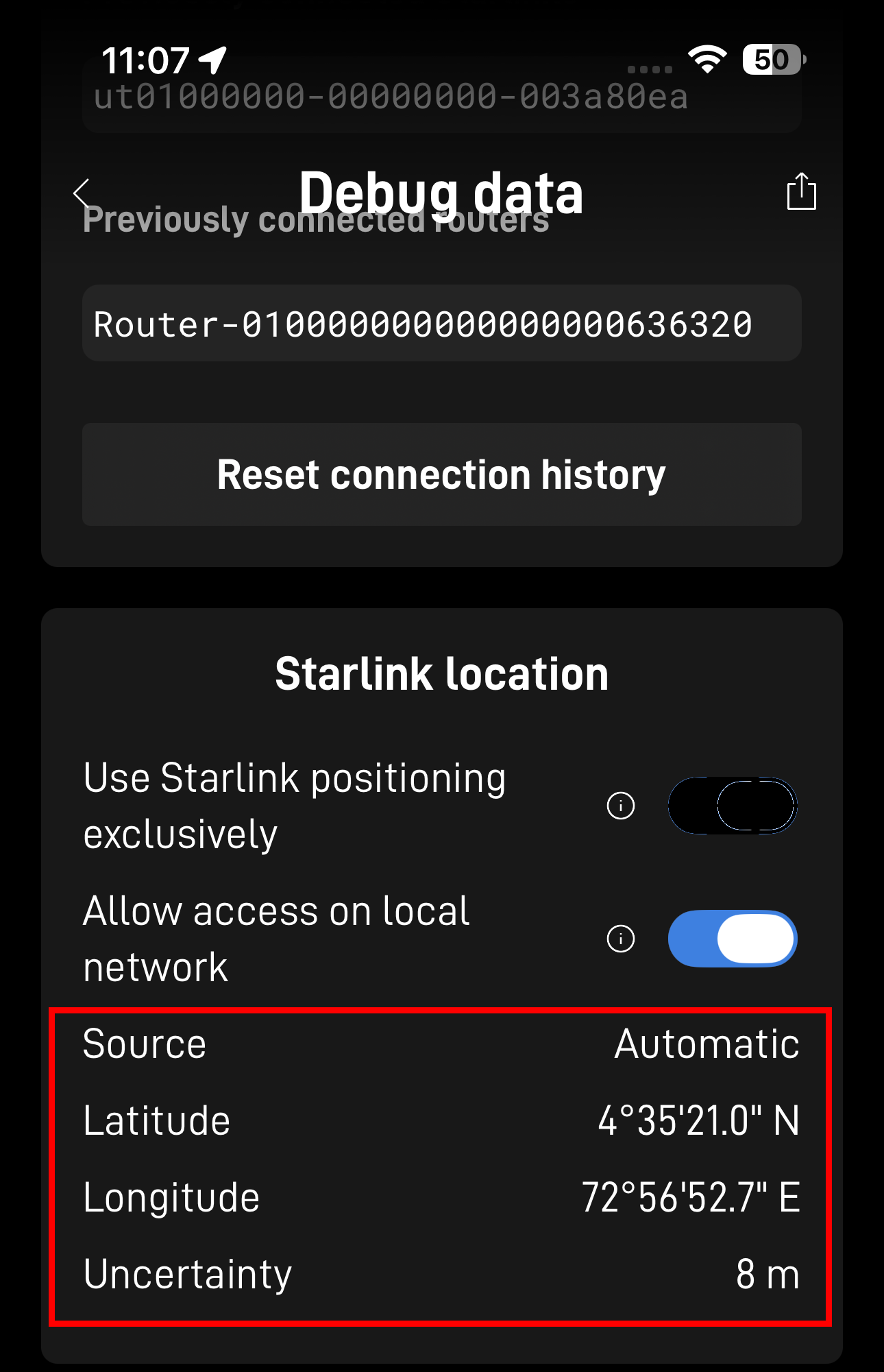
- Scroll to the Starlink location section
- Enable Allow access on local network
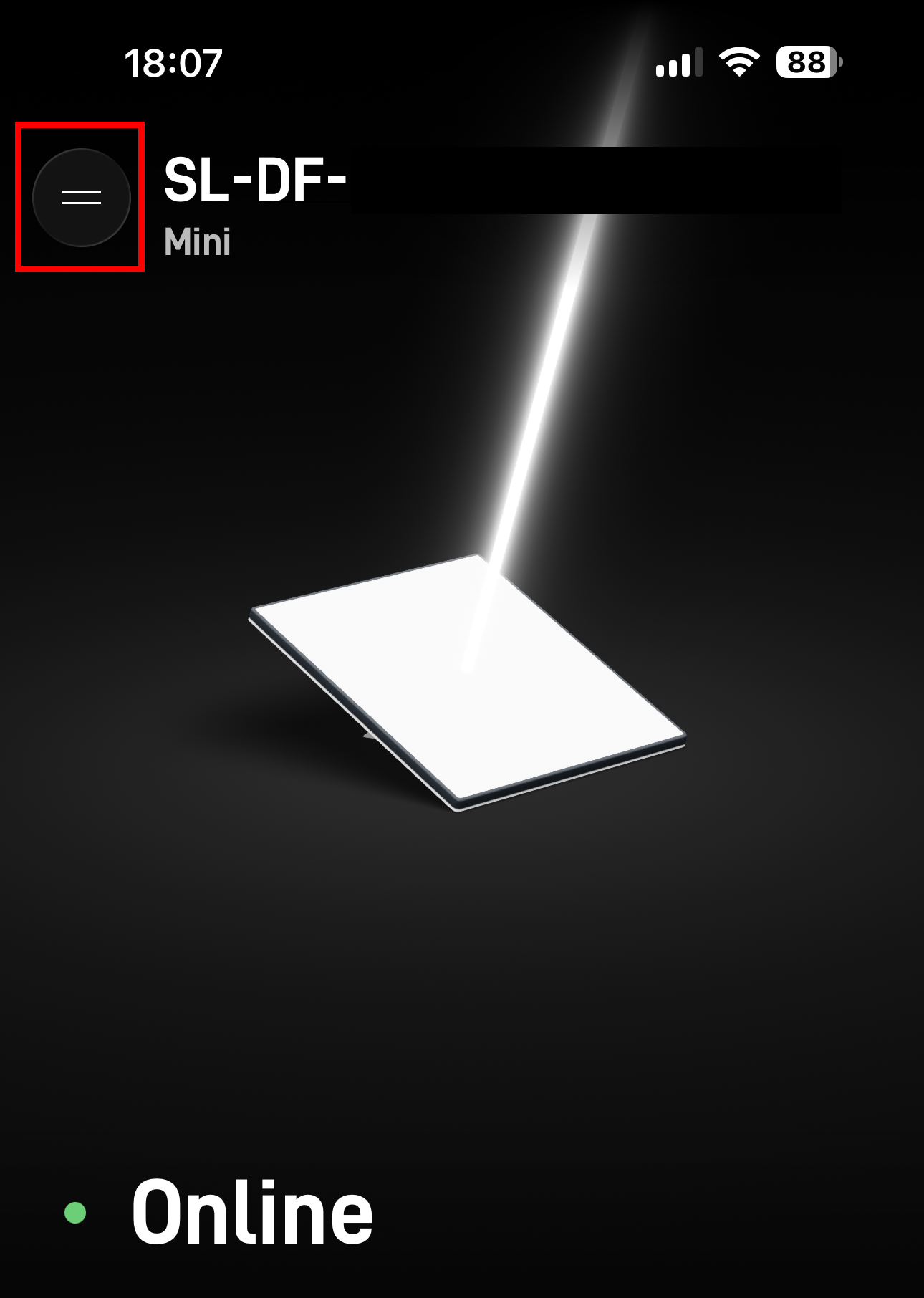
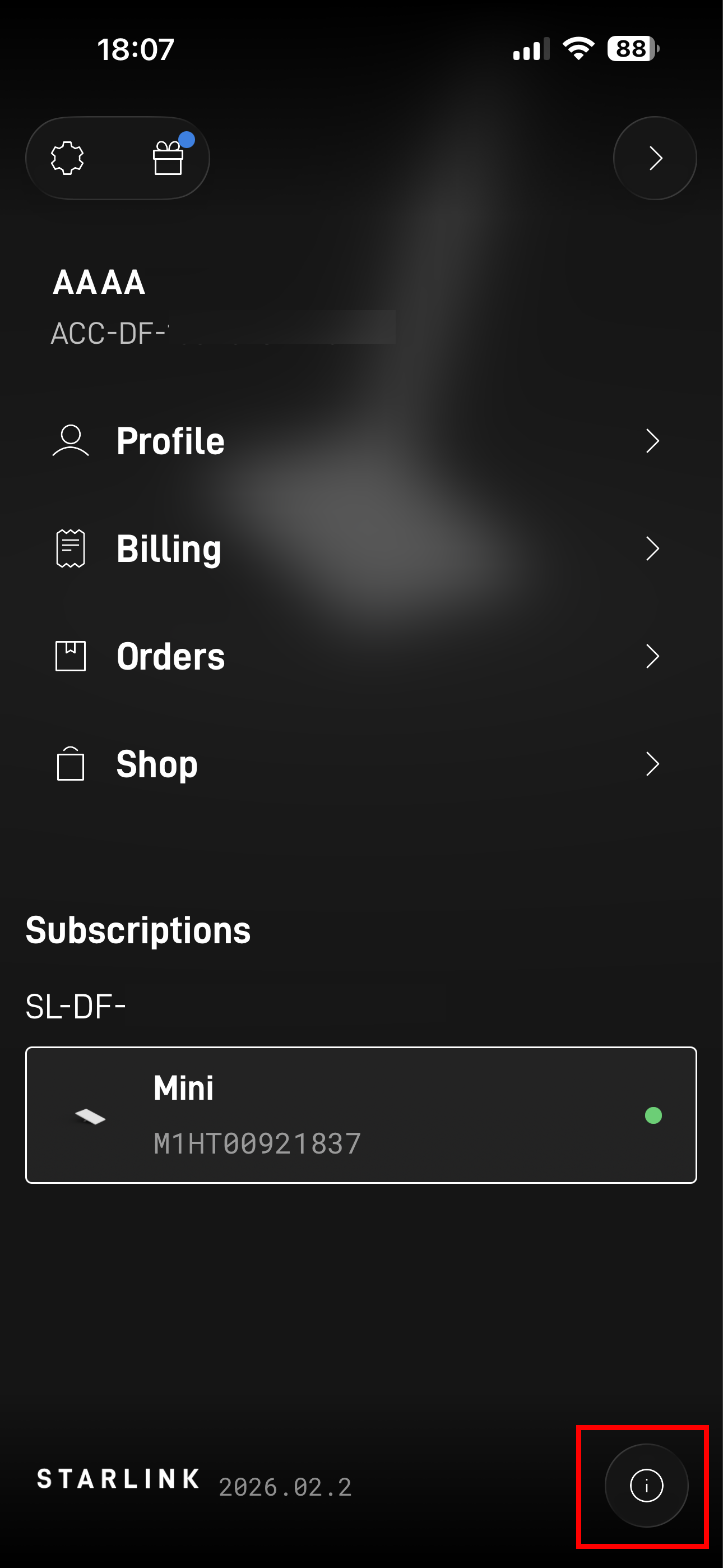
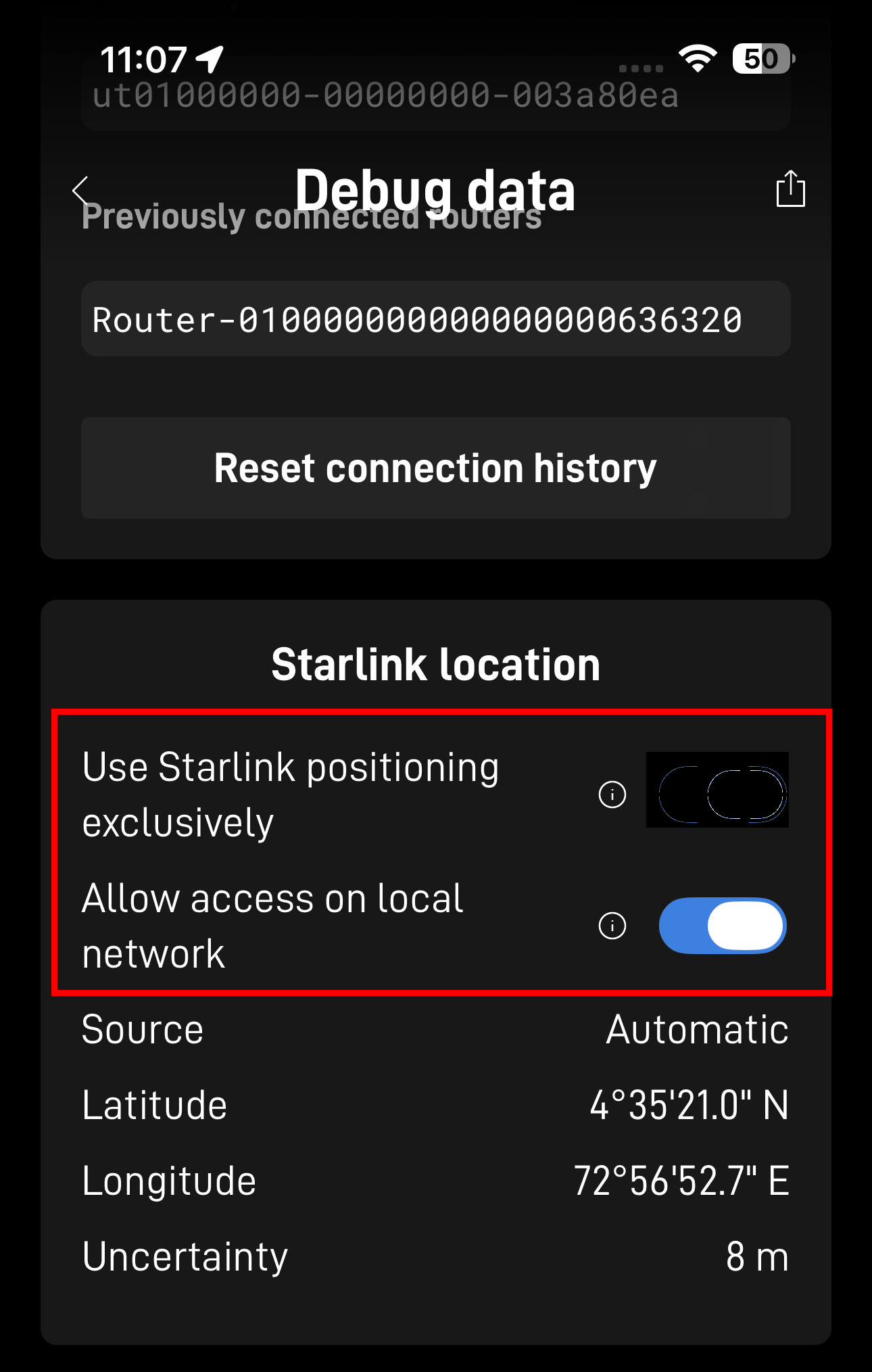
Required Configuration Options
In the Starlink location section there are two independent options. Both are important, but they serve different purposes.
1. Allow Access on Local Network (REQUIRED)
- This option must be enabled for all configurations in this repository
- It allows onboard systems (PredictWind DataHub, SignalK server, laptops, etc.) to access Starlink location data over the local network
- Without this enabled, no external system will receive position data
- This setting is recommended to leave enabled at all times
2. Use Starlink Positioning Exclusively
- ❌ Leave disabled
Verifying Starlink Location Data via Web Browser (Recommended)
After enabling Allow access on local network, it is strongly recommended to verify that the Starlink antenna is actually exposing its data on the local network. This test is independent of PredictWind DataHub, SignalK, or any other software and provides a fast sanity check.
- Connect a phone, tablet, or laptop to the Starlink local network
- Open a web browser
- Navigate to: http://192.168.100.1
- You should see a Starlink internal data/status page displaying live information from the antenna.
What to Look For
Scroll through the page and confirm there is a section labeled: location or similar, containing fields such as:
- Latitude
- Longitude
- Accuracy / uncertainty
- Timestamp
The data fields should look like this:
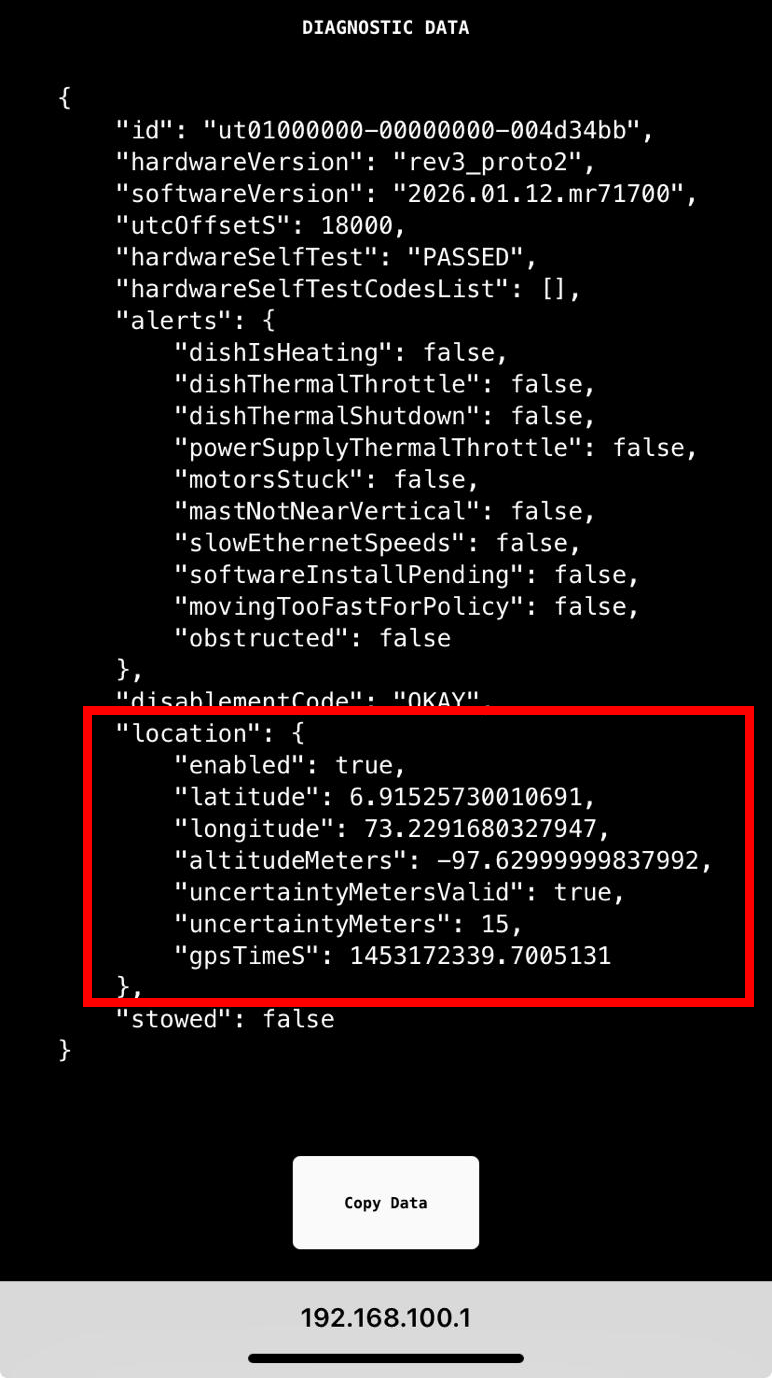
The presence of a location section confirms that:
- The Starlink antenna is generating position data
- Local network access is enabled
- Downstream systems (DataHub, SignalK, scripts) can retrieve this data
If no location section is present:
- Recheck that Allow access on local network is enabled in the app
- Power-cycle the Starlink antenna if needed
- Confirm you are connected to the Starlink network (not a different Wi-Fi)
Verifying Position Directly in the Starlink App
The Debug Data → Starlink location page also allows direct verification that Starlink is producing usable position data.
You should see:
- Latitude and Longitude
- Estimated uncertainty (meters)
- Position source (Automatic / Starlink)
Operational Notes from Field Testing
Contributors have reported successful real-world use of Starlink positioning including:
- Maintaining a stable position fix while underway
- Usable accuracy at typical cruising speeds
However:
- Starlink positioning is not guaranteed
- Accuracy and availability may vary by region and conditions
- It should be treated as a situational aid, not a sole navigation reference
Next Steps
Once Starlink location data is confirmed to be available on the local network, continue with one of the following setup guides:
-
PredictWind DataHub integration:
→ PredictWind DataHub integration -
SignalK → OpenCPN integration:
→ SignalK → OpenCPN integration
These documents describe how to forward Starlink position data into chartplotters and navigation software.
Important Disclaimer
Starlink positioning is not certified as a marine GNSS source. Always cross-check with visual navigation, radar, depth, and other instruments, and revert to standard GPS when it becomes reliable again.