PredictWind DataHub → Chartplotter / OpenCPN / Navionics Setup (Starlink Positioning)
This document describes how to use Starlink position data via the PredictWind DataHub as an alternative navigation position source when GNSS is unavailable, degraded, or spoofed.
The DataHub converts Starlink position data into standard NMEA 0183 and NMEA 2000 messages, making them usable by:
- Chartplotters (Raymarine, etc.)
- OpenCPN
- Navionics (mobile)
- Other NMEA-capable navigation software
⚠️ Important disclaimer
Starlink positioning and DataHub-derived GPS data are not certified as primary navigation sources. This setup is intended as a fallback / resilience option only. Always cross-check position data and revert to certified GNSS sources as soon as possible. PredictWind provides no warranty or guarantee for the reliability and accuracy of any GPS position data supplied from Starlink.⚠️ Other Important Notes The DataHub cannot accommodate this feature in the firmware due to its large file size. PredictWind is offering this upgrade via a manual workaround that relies on the Datahub’s internal SD card, and as such is not a long-term solution. We have done this to provide immediate support to Red Sea cruisers in the interests of the safety of our customers.
This is a limited-time offer available to Red Sea Cruisers until April 1, 2026
The best solution is to buy a DataHub Pro to continue to use Starlink GPS long term.
1. Overview – Data Flow Options
The PredictWind DataHub can distribute Starlink position data in two parallel ways:
1.1 Over Wi-Fi (NMEA 0183)
- UDP (recommended for most apps)
- TCP (supported by some apps)
- Used by:
- OpenCPN
- Navionics
- Other mobile or desktop apps
1.2 Over the Navigation Backbone (NMEA 2000)
- DataHub → NMEA2000
- Can be bridged to:
- SeatalkNG
- Seatalk1 (via Raymarine converters)
- Used by:
- Chartplotters (MFDs)
- Autopilots
- Instruments
Both methods can be active simultaneously.
2. Pre-Requisites
- PredictWind DataHub (Pro model required)
- PredictWind Professional subscription
- Starlink (Mini tested, other generations expected to behave similarly)
- Starlink configured to expose position data on the local network and to use Startlink positioning exclusively
- See: Starlink setup for details
3. DataHub Firmware Update (Required)
Starlink positioning support requires DataHub firmware v4.43 (beta).
Steps
- Login to the DataHub web interface
- Navigate to: Services → Settings → Software Update
- Select Alternate
- Upgrade to v4.43 (Important Note: This is the only version of DataHub Firmware with SLGPS capability)
You should see in the changelog: “Starlink infrastructure”
ℹ️ This feature is available only to PredictWind Pro users. DataHub Pro hardware is required due to increased memory and CPU usage.
⚠️ Once manually enabled, if your DataHub SD card is ever wiped, or when your Datahub firmware is upgraded, your DataHub will lose this feature. The best solution is to buy a DataHub Pro to continue to use Starlink GPS long term.
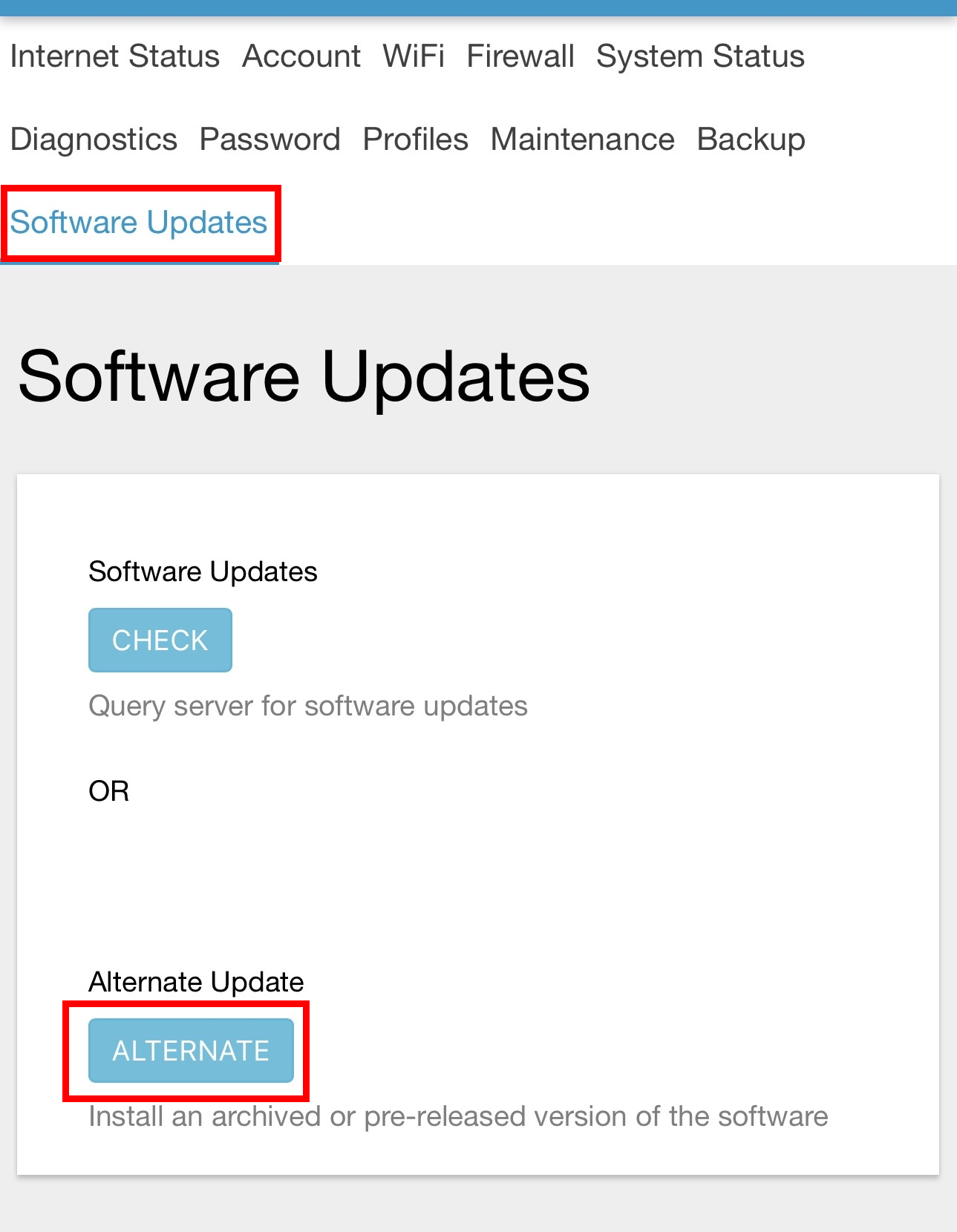 (DataHub alternate download)
4. Enable Remote Access
Remote Access is required by PredictWind to manually enable Startlink GPS
Steps
- Login to the DataHub web interface
- Navigate to: Services → Remote Access → Tools
- Tick Startup on Boot and Persistent Connection
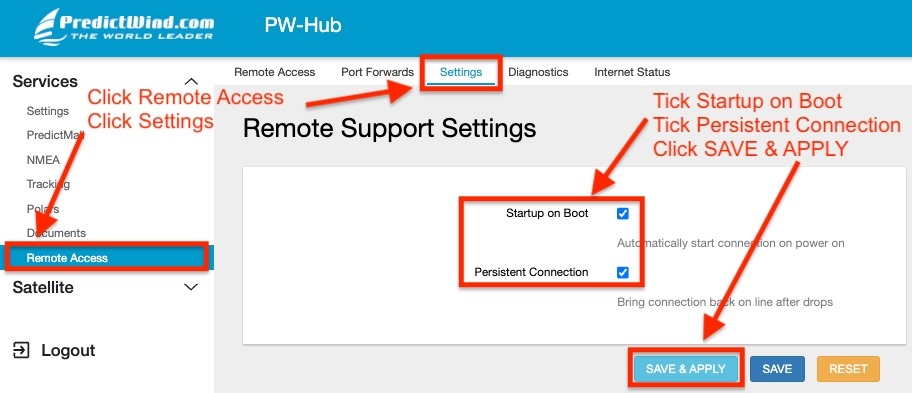
- Click SAVE & APPLY
- Navigate to: Services → Remote Access
- On the webform for Remote Support, add your Boat Name, Your Name and your Email
- In the Additional Info field, add “Please Enable SLGPS”
- Click ENABLE REMOTE SUPPORT
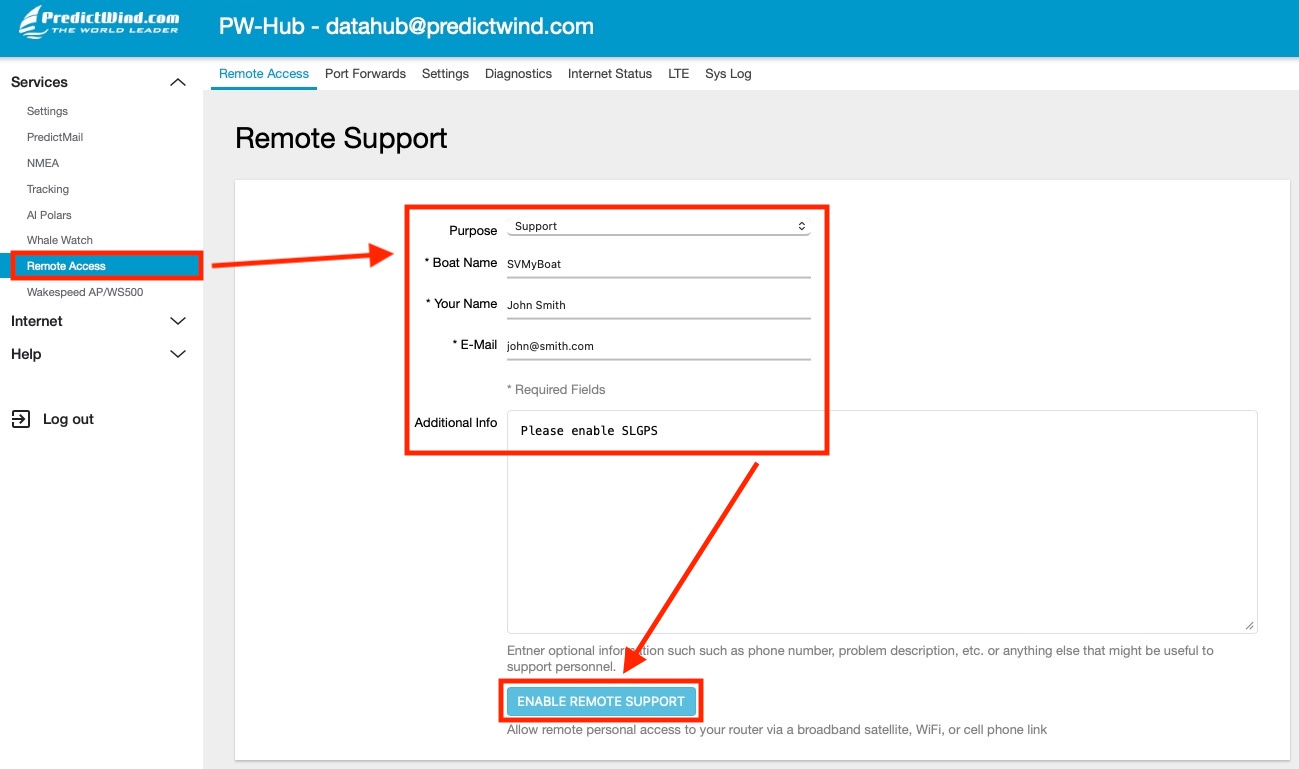
Within 24/48 hours, PredictWind Support will connect to your unit and apply the manual workaround and be in contact with you directly.
5. Enable Starlink GPS in DataHub
After updating:
- Go to: Internet → Starlink
- Enable GPS via Starlink
- Click Save & Apply
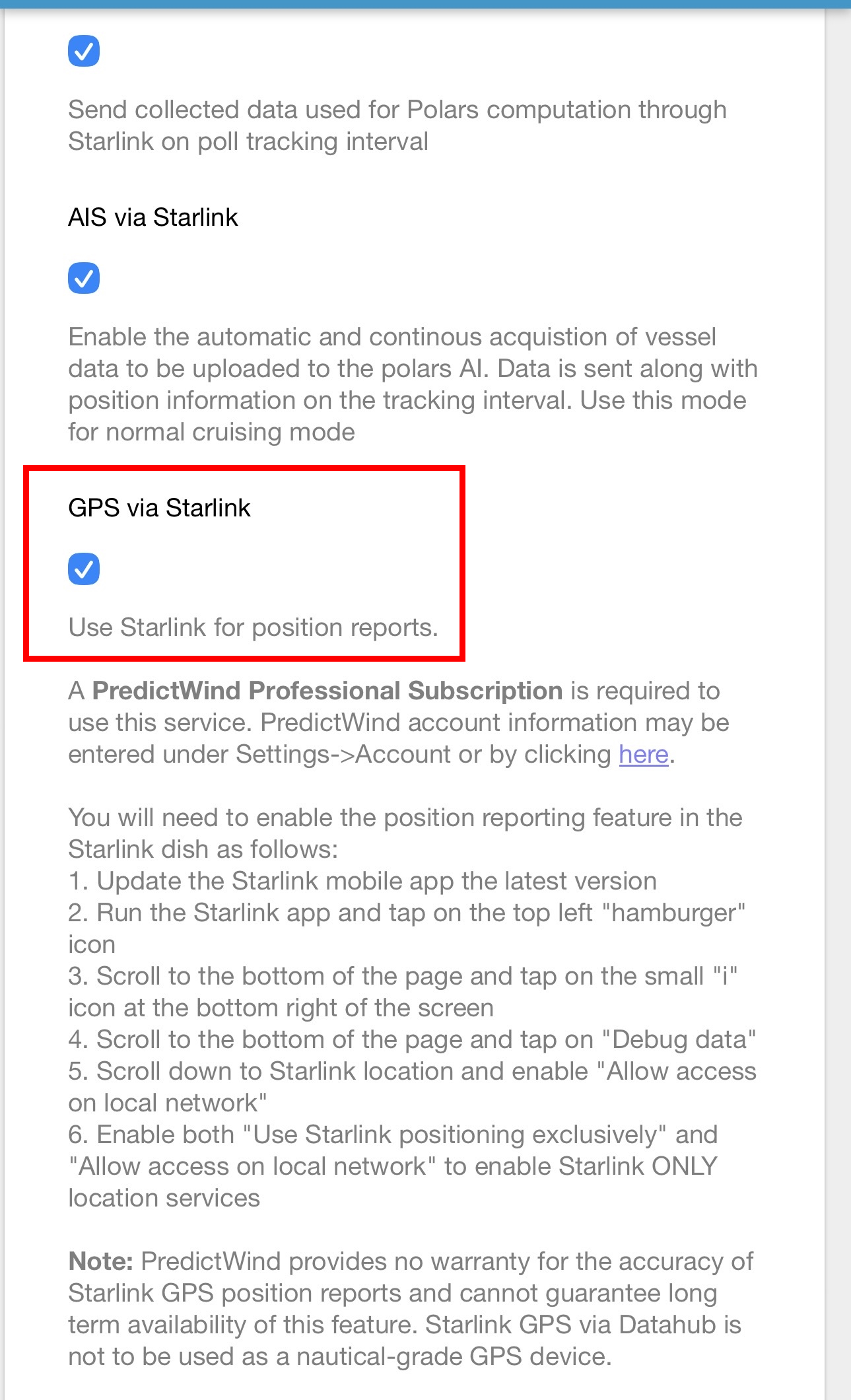 (Make/Model: PredictWind DataHub, firmware v4.43)
- Then go to: NMEA → Source
- Select Position via Starlink
- Click Save & Apply
ℹ️ In future, if you wish to revert to regular GPS, update NMEA → Source back to your preferred option, e.g. NMEA2000 on CAN0, then click Save & Apply.
ℹ️ If you are not using SLGPS for an extended period, it may be wise to disable it under Internet > Starlink to reduce DataHub CPU usage.
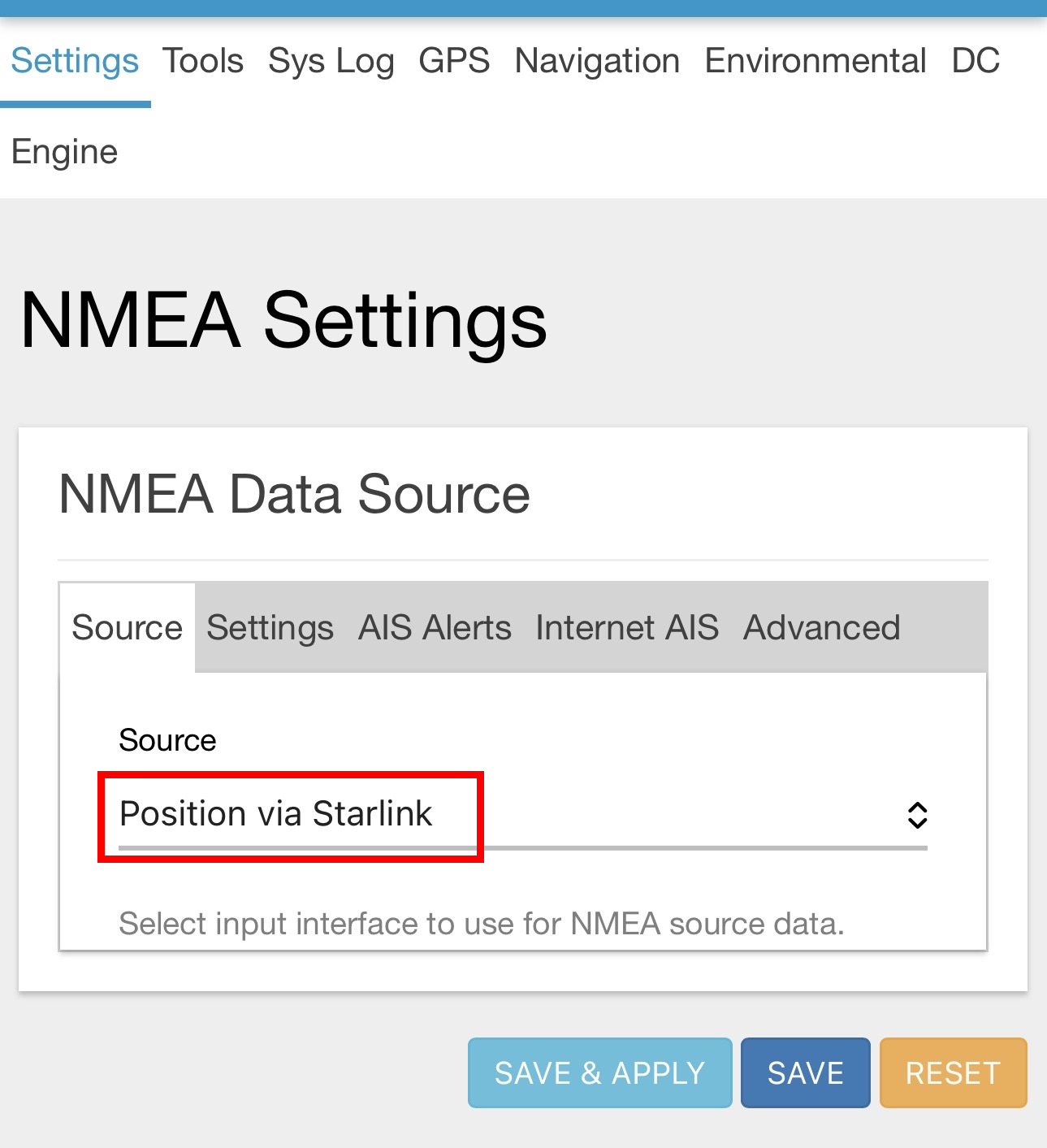 (Make/Model: PredictWind DataHub, firmware v4.43)
6. Advanced Starlink GPS Tuning (New)
Recent DataHub updates introduce advanced tuning options:
6.1 Poll Rate
- Range: 2–10 seconds
- Controls how often the DataHub queries the Starlink dish
- Lower = more responsive, higher CPU/network usage
6.2 Window Size
- Number of samples used to compute averages
- Affects COG/SOG stability
- Larger values = smoother output, more lag
6.3 Smoothing Factor
- Range: 0.0 – 1.0
- Exponential smoothing applied to track output
- Lower = smoother, but increased latency (1 = no smoothing; 0.3 = 70% smoothing)
Recommended starting values:
- Poll Rate:
3 - Window Size:
5 - Smoothing Factor:
0.3
⚠️ Excessive smoothing may delay turns and course changes.
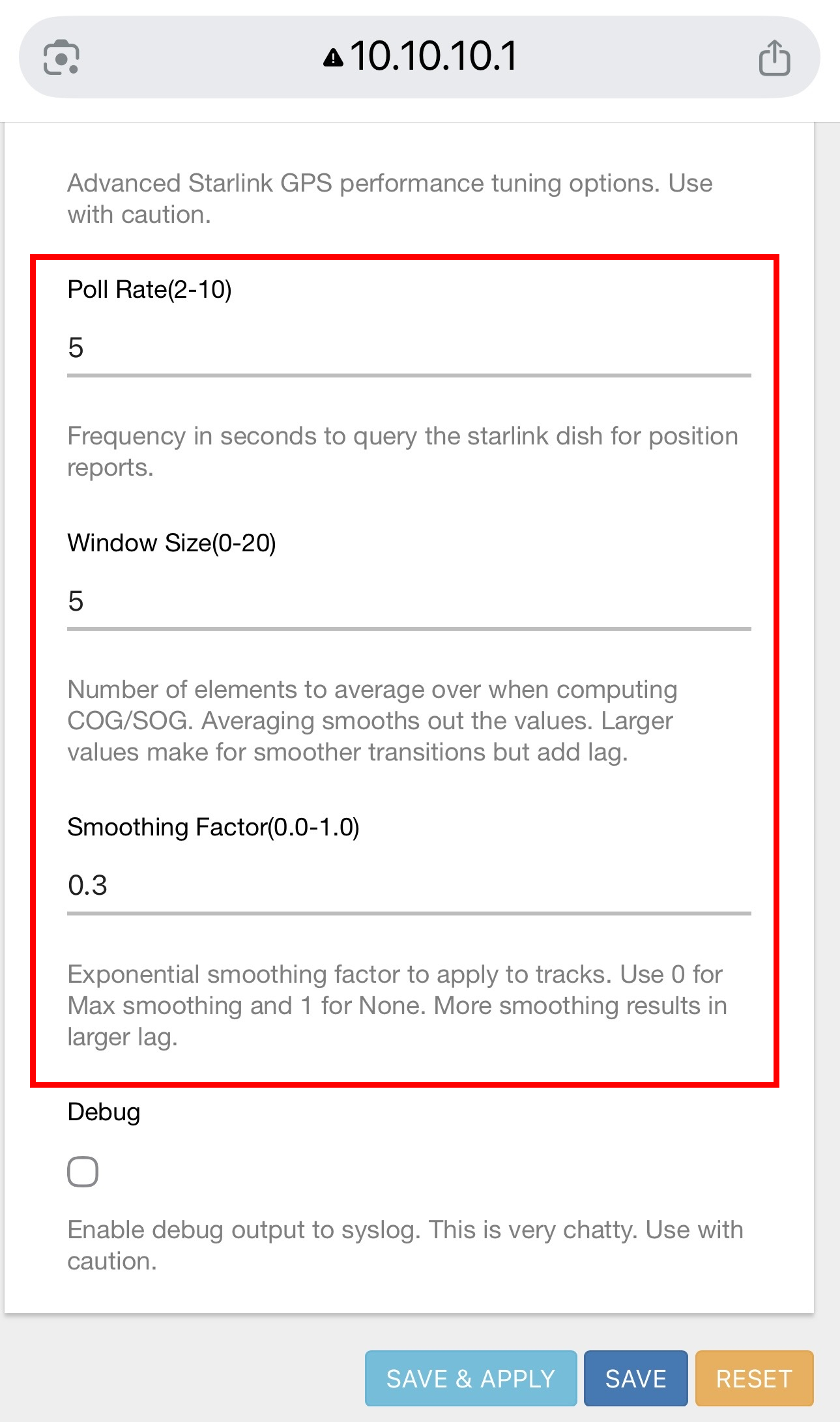 (Make/Model: PredictWind DataHub)
7. Chartplotter Configuration
7.1 Modern Chartplotters (GPS Source Selection)
Some MFDs (e.g. Raymarine Axiom series, and B&G Zeus Series) allow manual GPS source selection.
7.1.1 Raymarine Axiom Series
Select: GPS Source → DataHub (RDSensing)
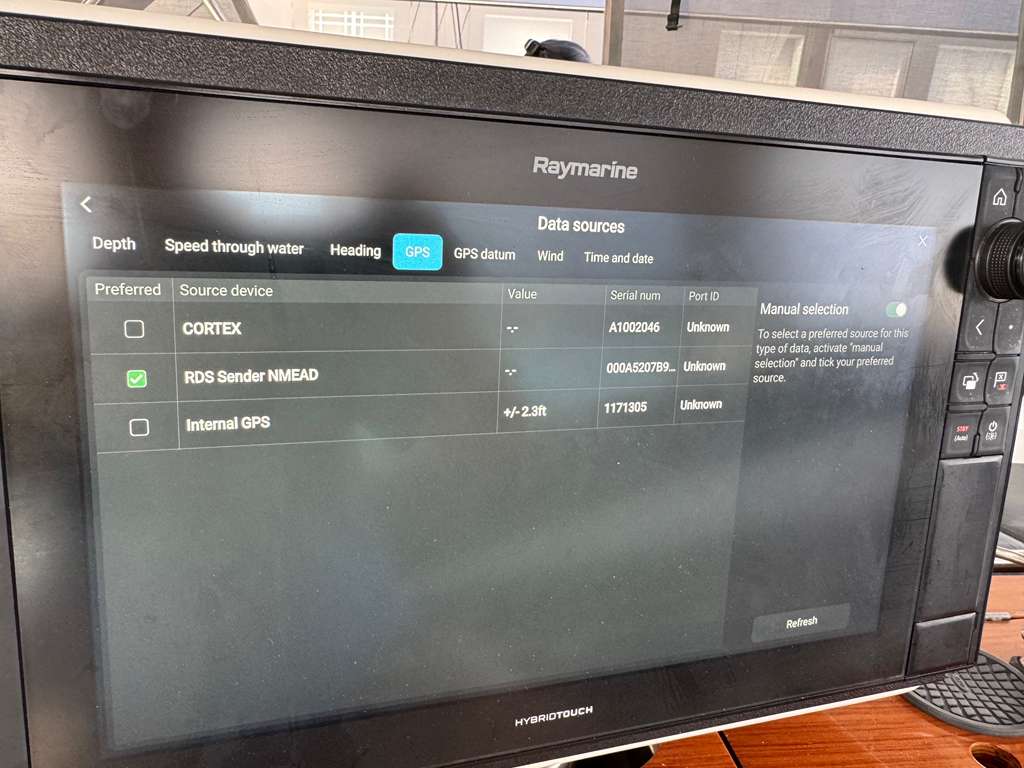 (Make/Model: Raymarine Axiom Pro)
7.1.2 B&G Zeus SR-10
Select:
- Settings
- Boat Network
- Source
- Position
- There should be a new option showing: “RDS Sender NMEAD
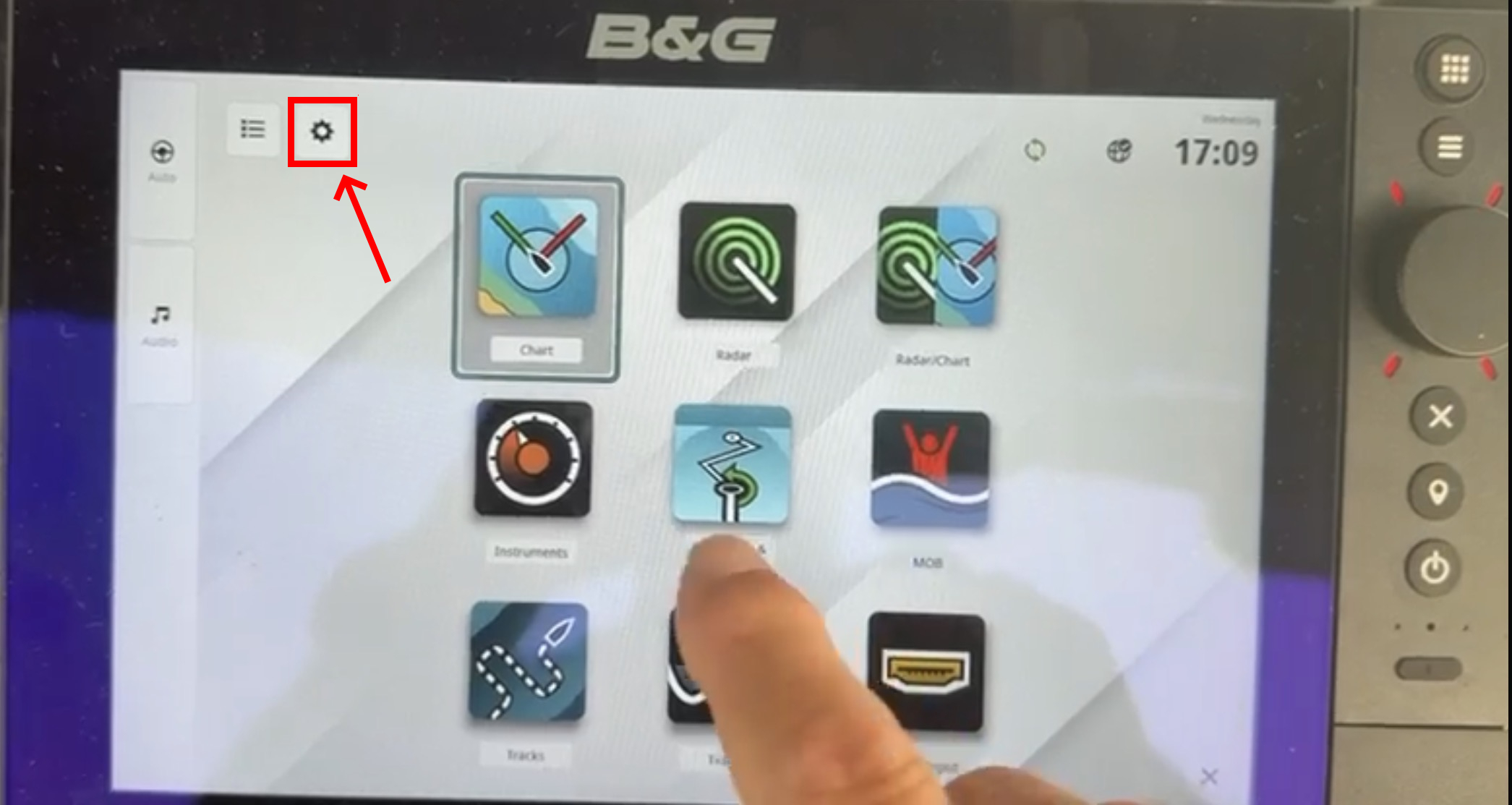 (Make/Model: B&G ZEUS SR-10)
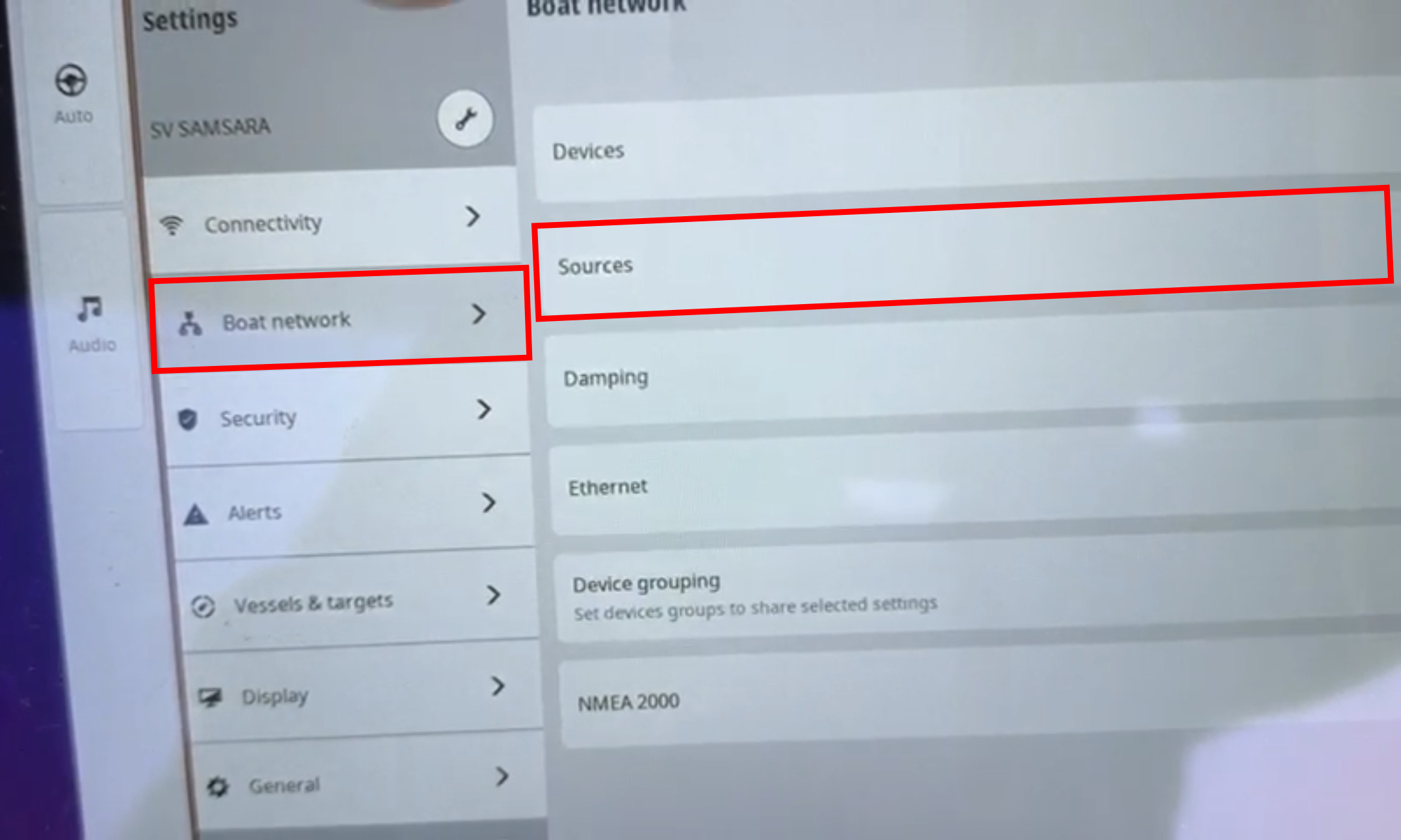 (Make/Model: B&G ZEUS SR-10)
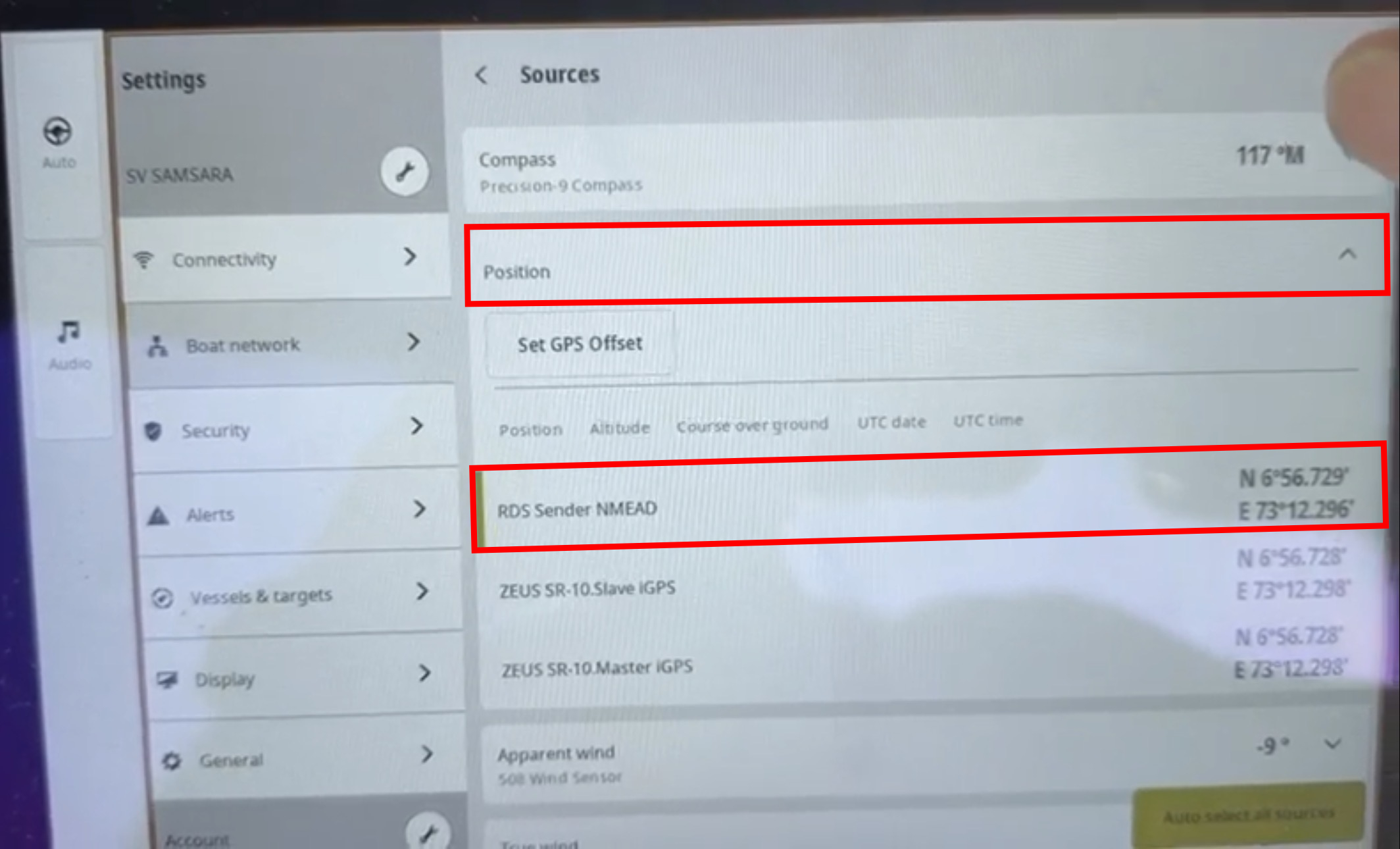 (Make/Model: B&G ZEUS SR-10)
7.1.3 B&G Zeus 3
Select:
- Settings
- Network
- Sources
- Advanced
- GPS
- There should be a new option showing: “RDS Sender NMEAD
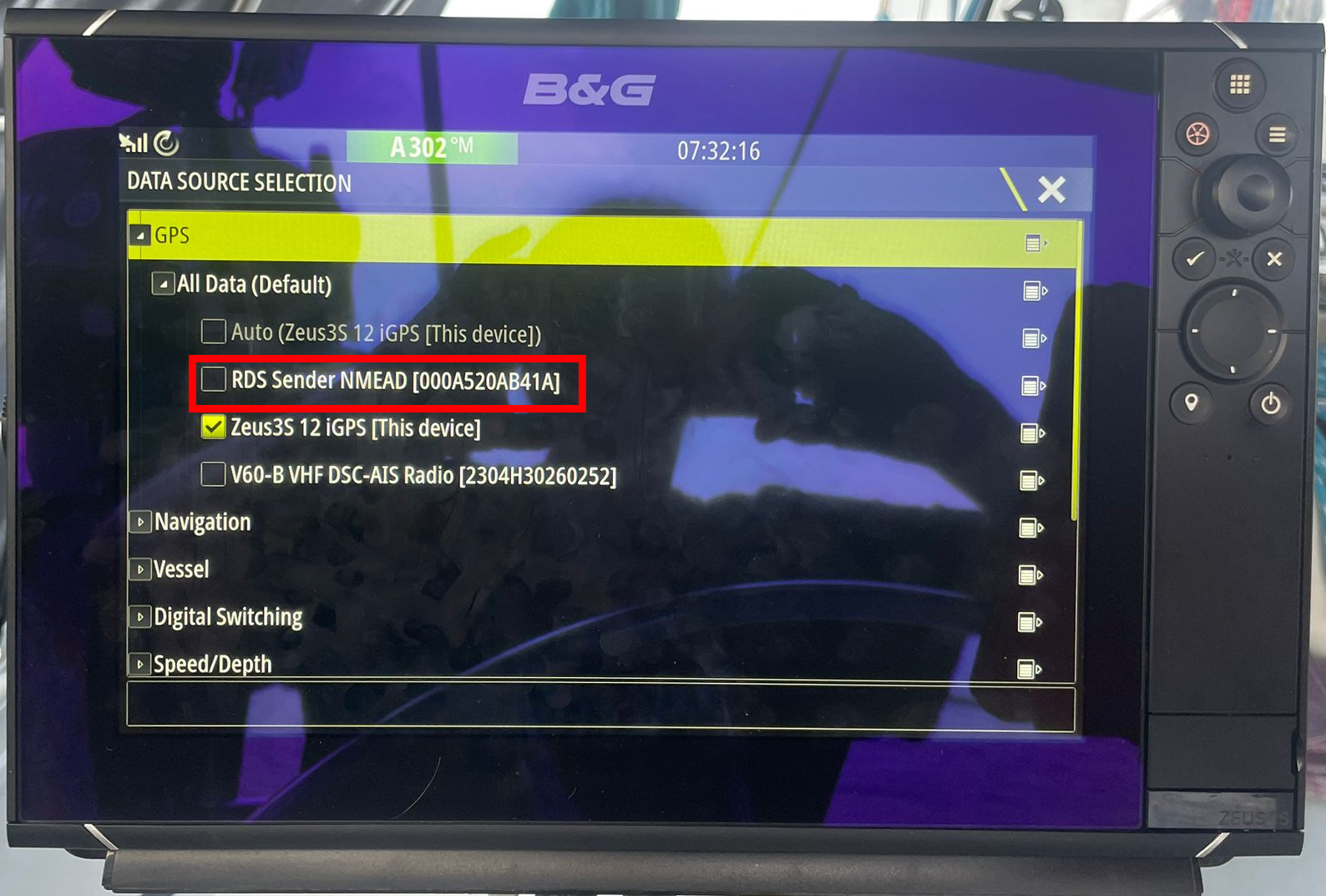 (Make/Model: B&G ZEUS 3)
7.2 Legacy Chartplotters (No GPS Source Selection)
Older chartplotters (e.g. Raymarine E120 Classic) do not allow GPS source selection.
In this case:
- All other GPS sources must be disconnected or disabled
- This includes:
- Internal GPS
- AIS GPS feed
- External GPS sensors
The chartplotter will then automatically use the only available source: DataHub → Starlink.
Example: GPS lost before enabling DataHub
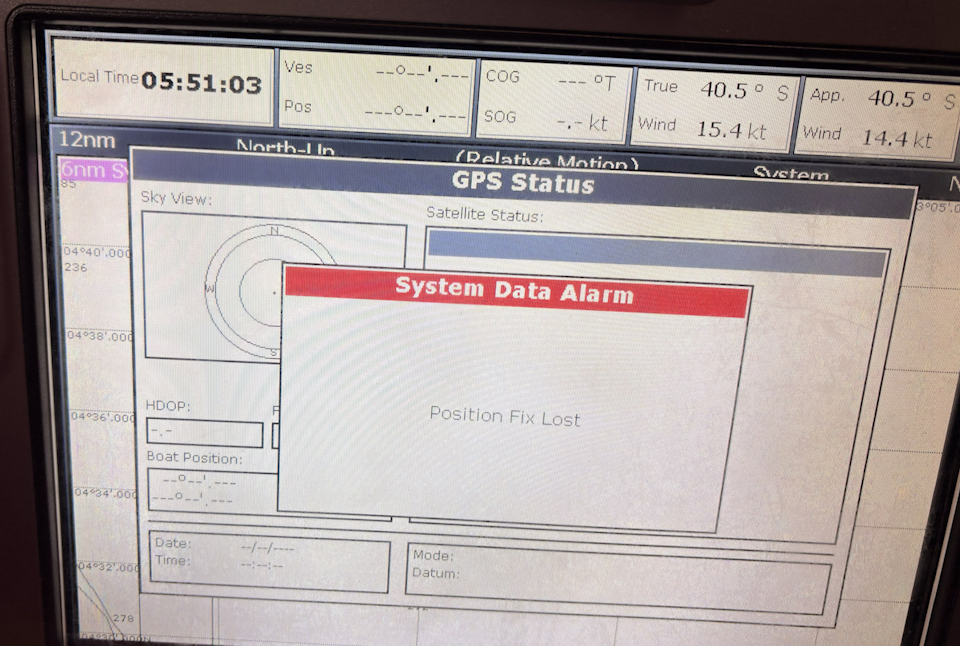 (Make/Model: Raymarine E120 Wide Classic)
Example: Fix restored via DataHub / Starlink
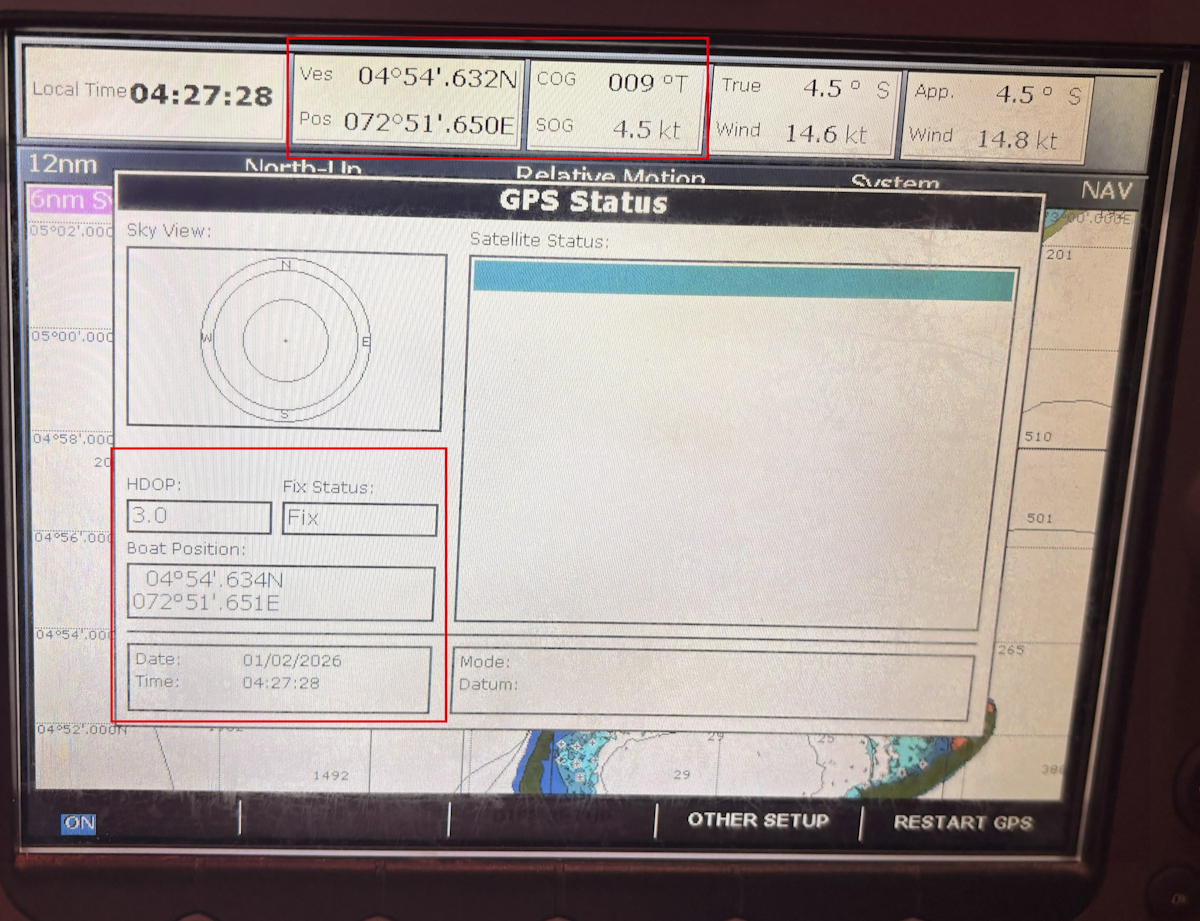 (Make/Model: Raymarine E120 Wide Classic)
8. DataHub → Navigation Backbone (NMEA2000 / Seatalk)
When connected to the navigation backbone, the DataHub injects GNSS data into:
- NMEA2000
- SeatalkNG
- Seatalk1 (via converter)
This allows full system integration, including:
- Chartplotters
- Autopilots
- Wind instruments
- Log / speed calculations
9. Navionics Configuration ( (Step-by-Step)
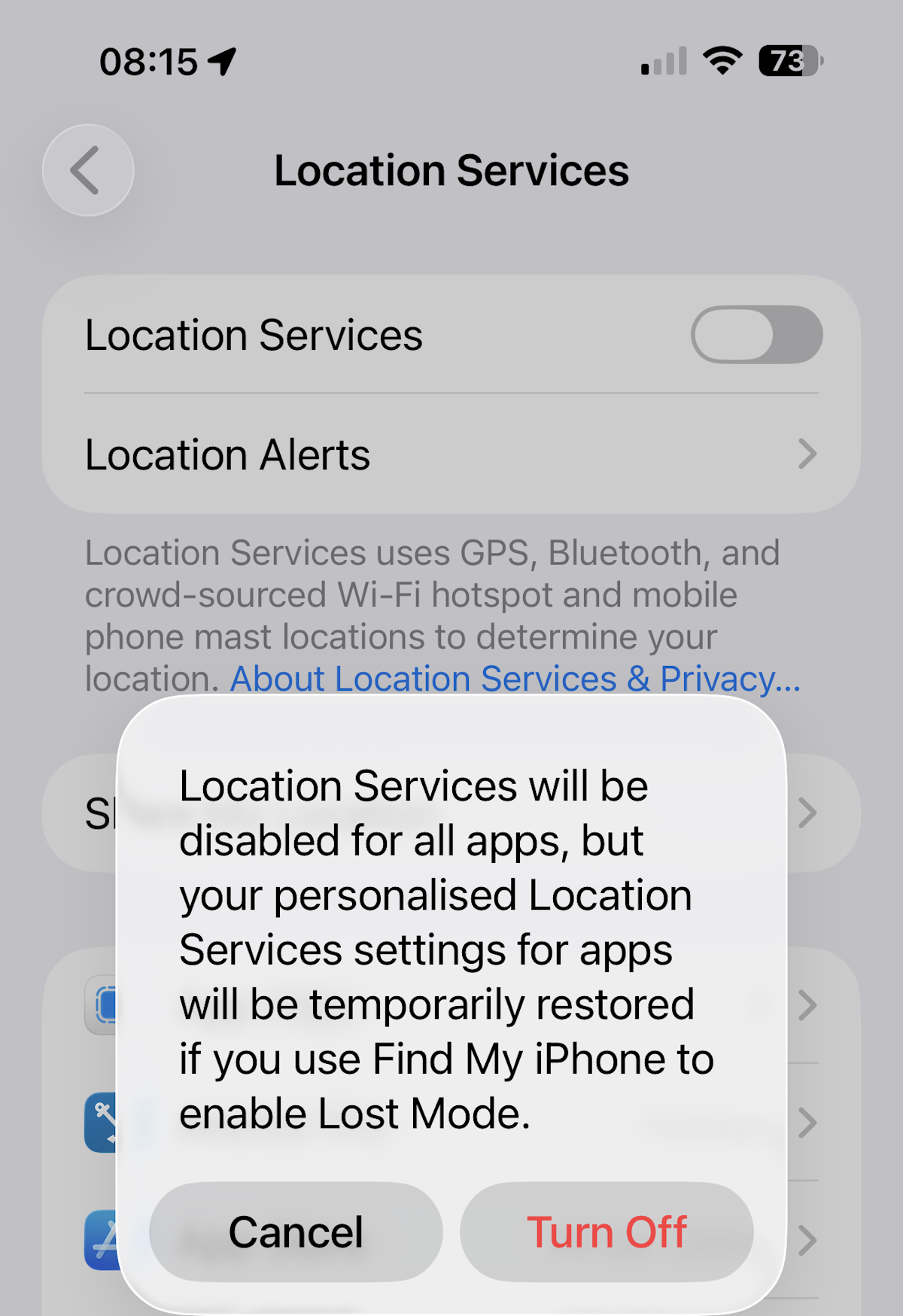
8.1 Disable Internal GPS / disable phone Location Services
This ensures Navionics uses only Starlink-derived position data.
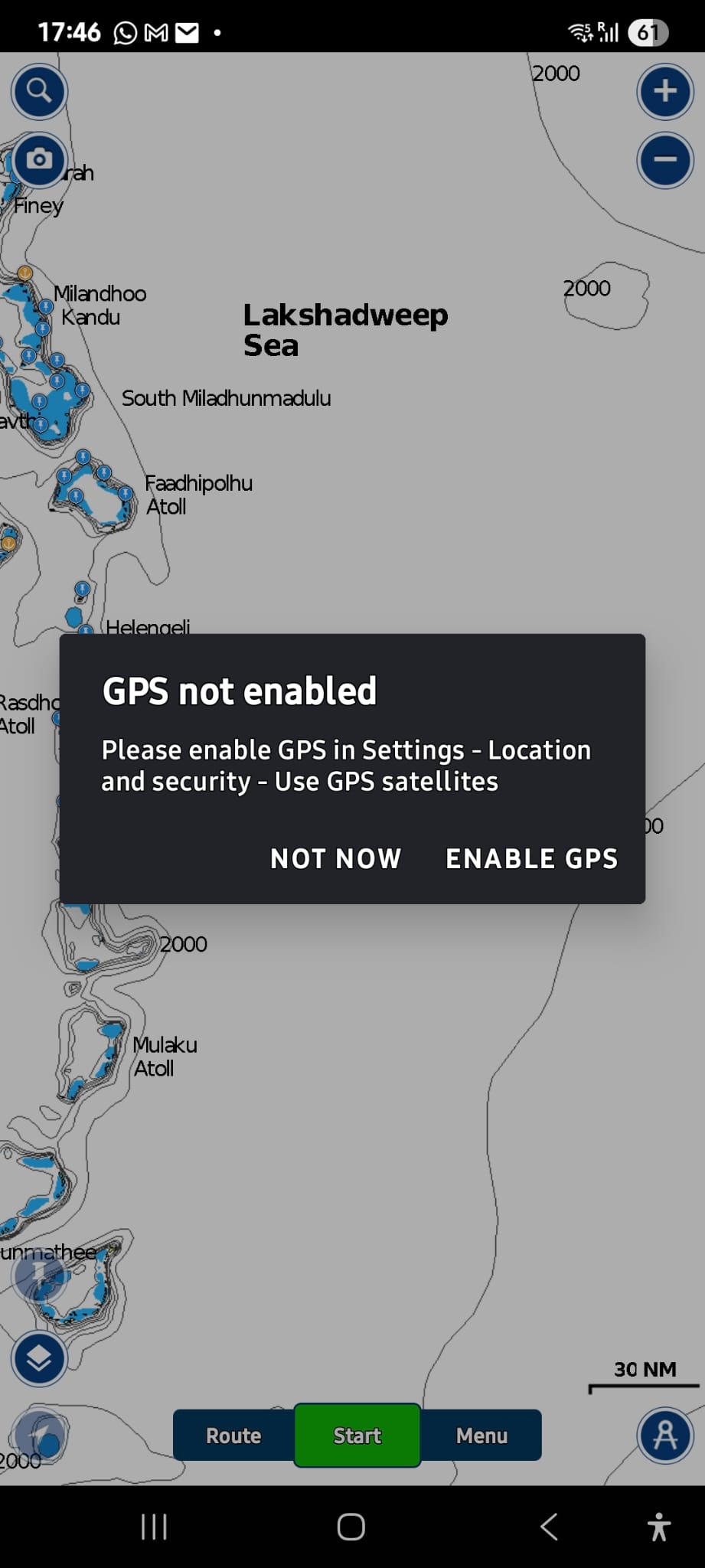
9.2 Your Navionics shouls give you a warning GPS not enabled. We are now ready to pair our Datahub as the new GPS source
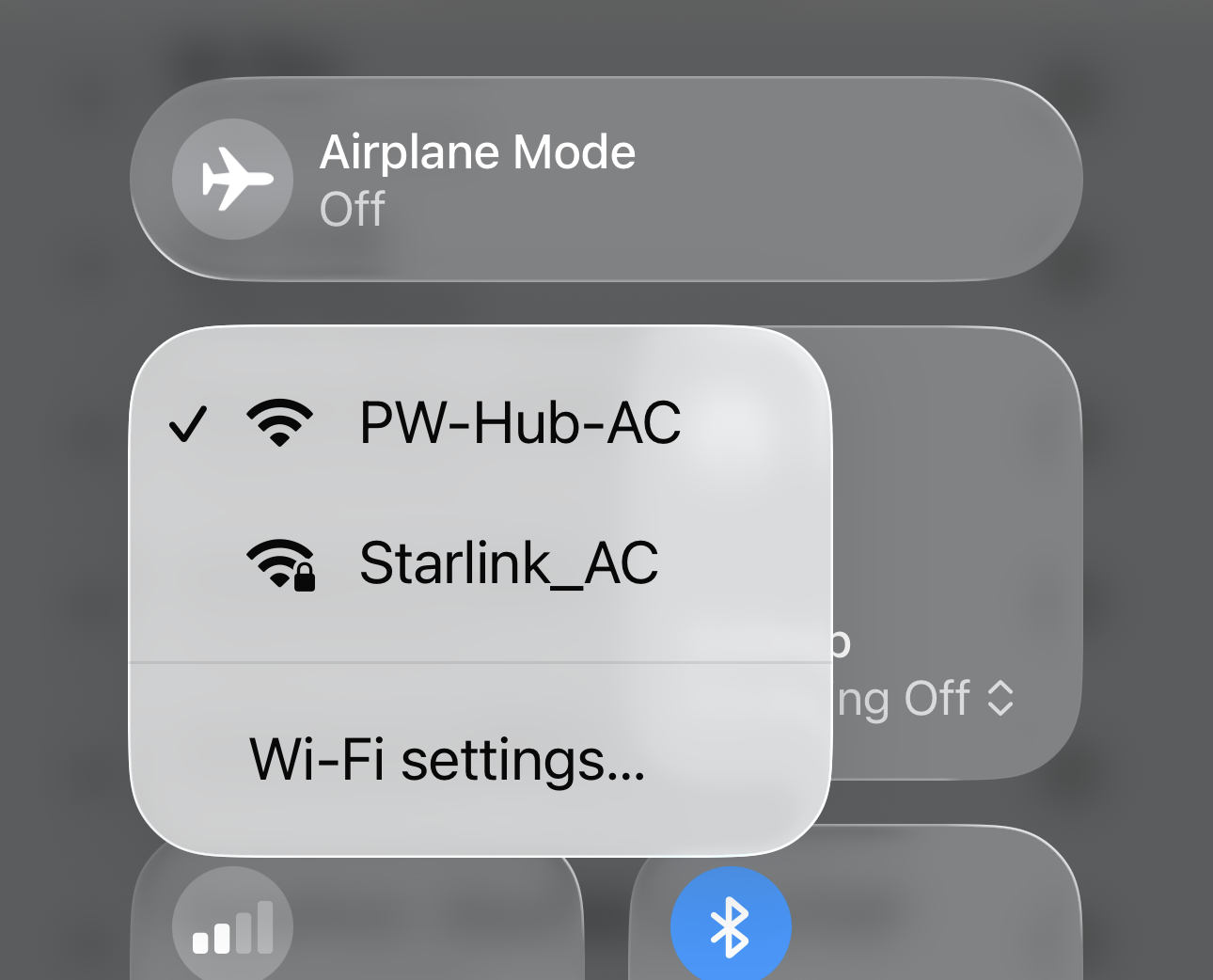
9.3 Connect device to DataHub Wi-Fi
Not the Starlink Wi-Fi
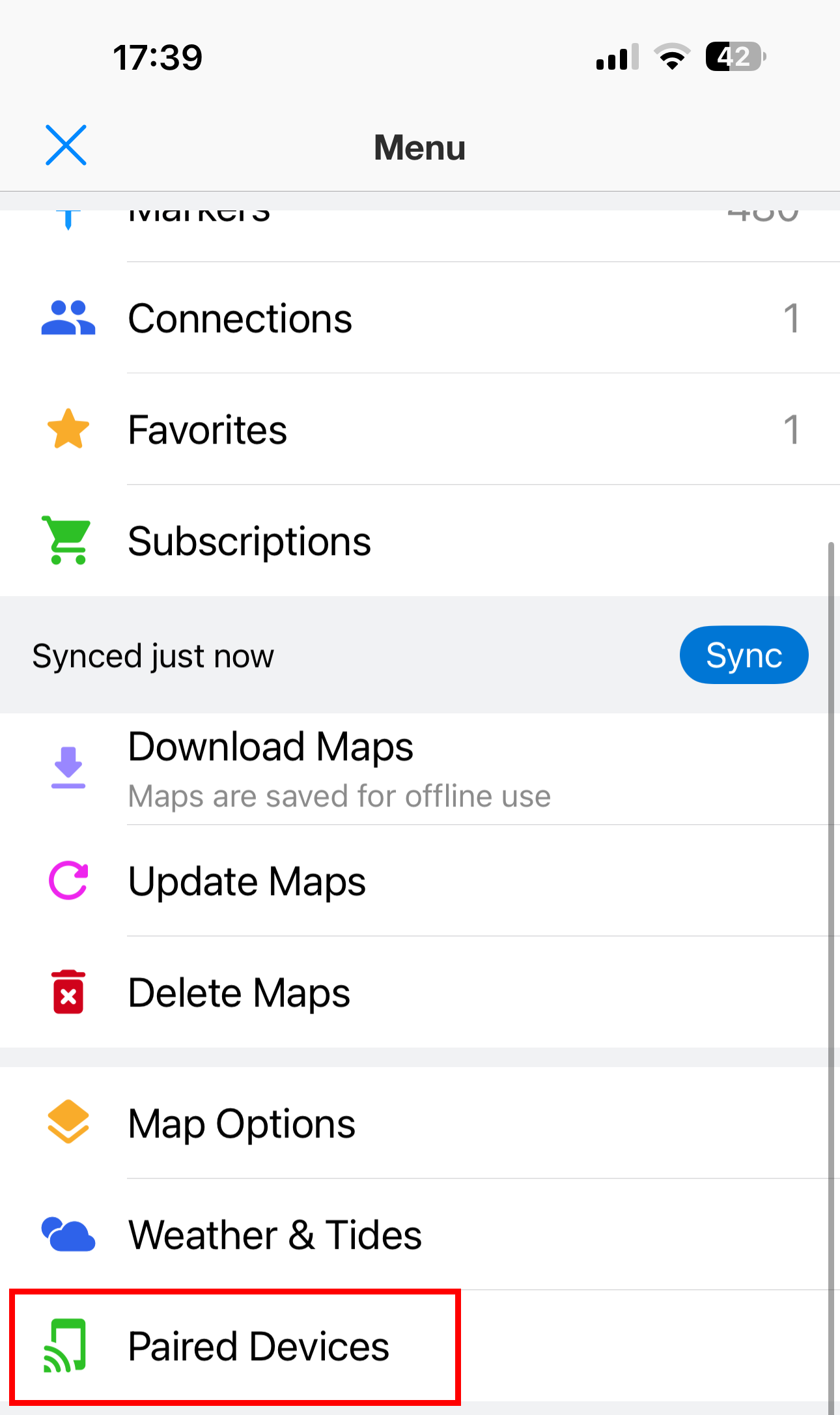
9.4 Pair the DataHub GPS source: Go to: Menu → Paired Devices
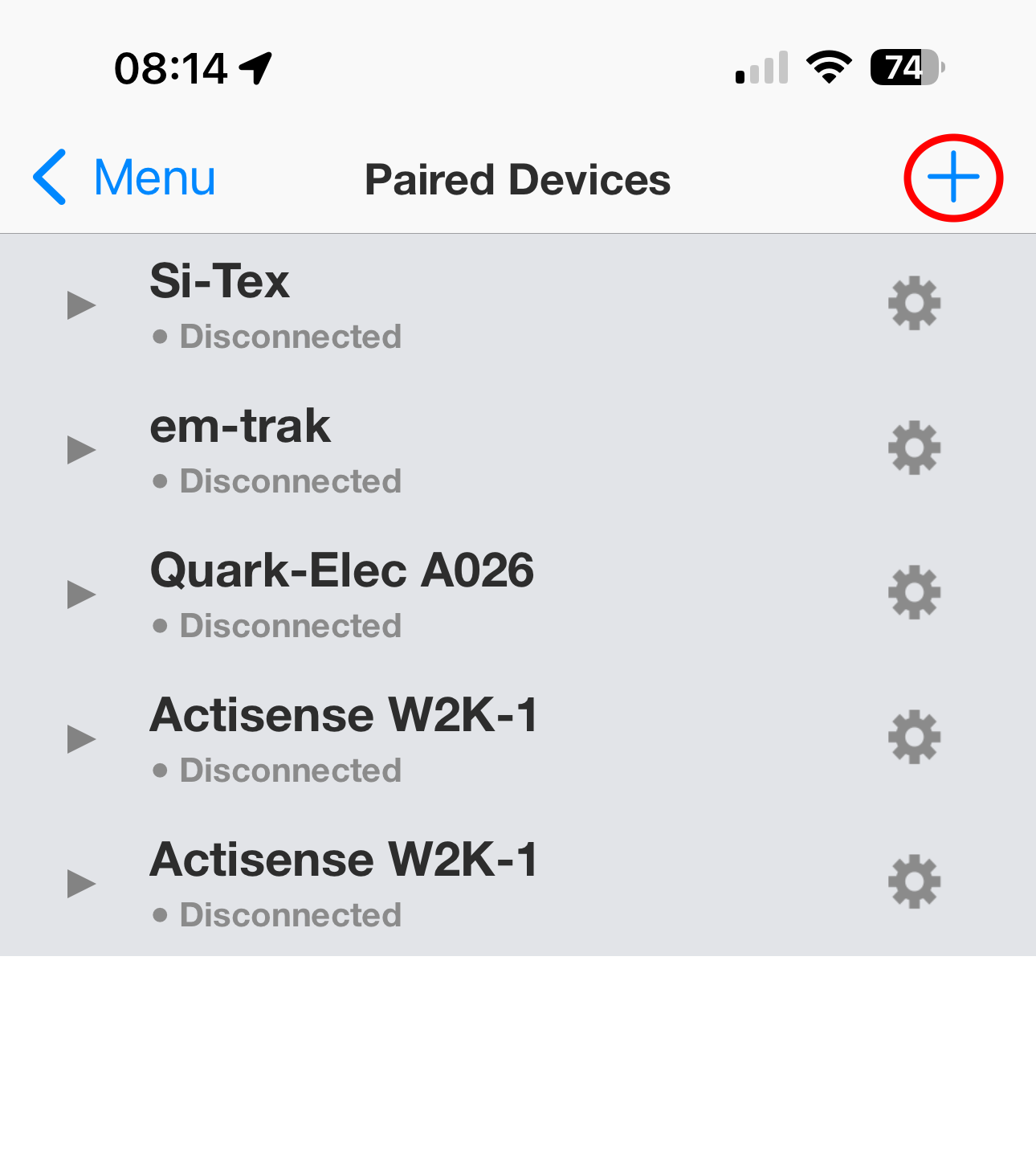
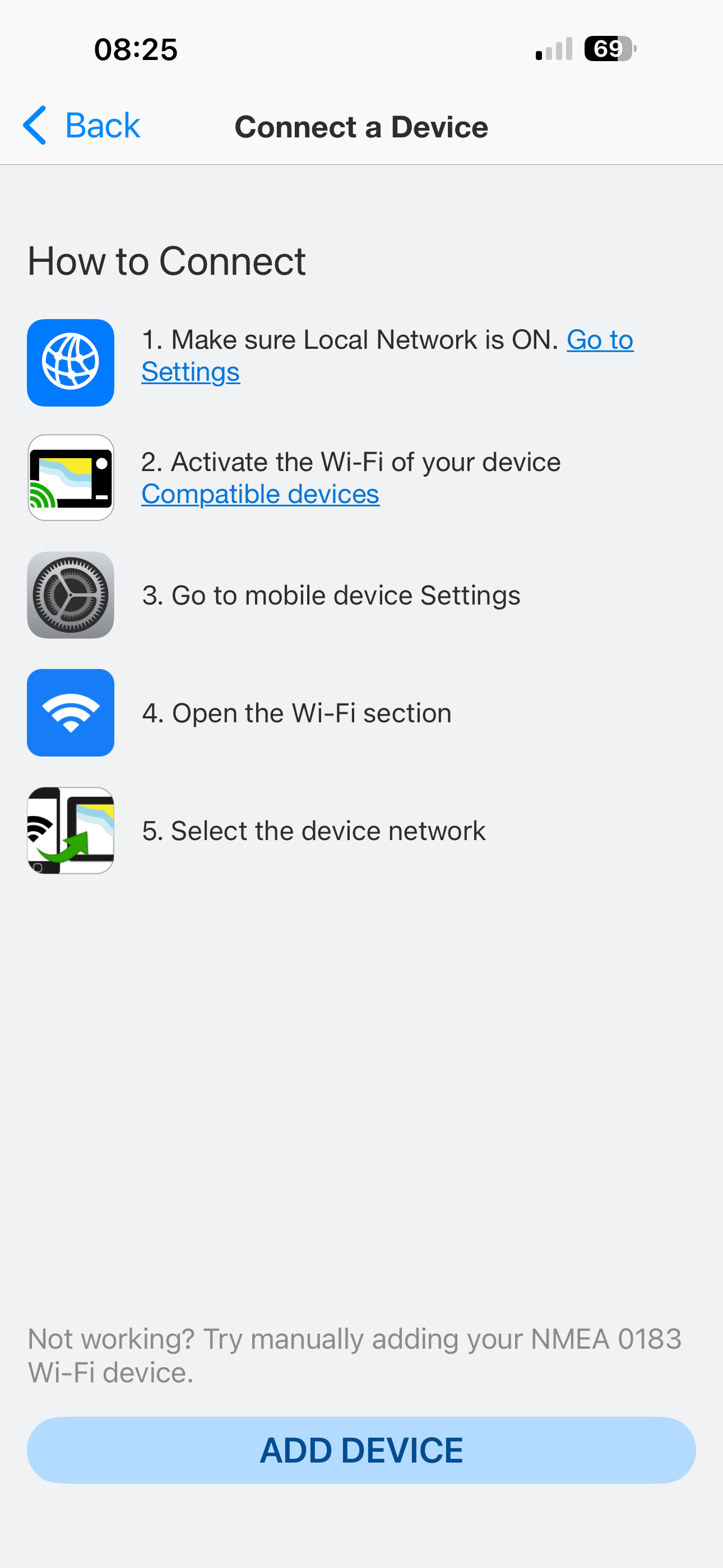
9.5 Click the ‘+’ to pair a new device and then click on ‘Add Device”
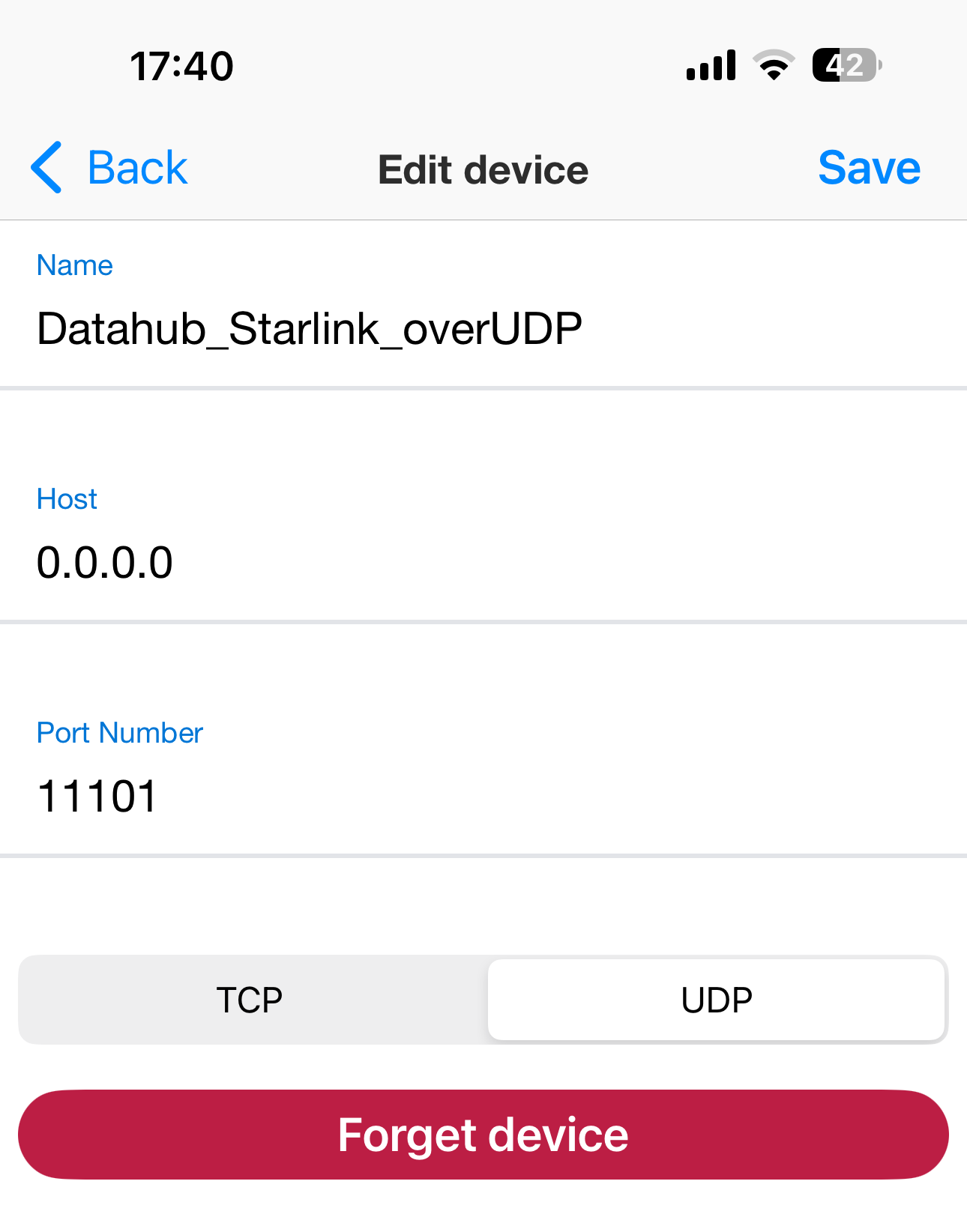
9.6 Setup the new device as:
- Name: DataHub_Starlink_over UDP (example - free field)
- Host: 0.0.0.0
- Port Number: 11101
- Protocol : UDP (recommended)
OR
- Name: DataHub_Starlink_over TCP (example - free field)
- Host: 10.10.10.1
- Port Number: 11102
- Protocol : TCP (alternative)
9.7. Click SAVE
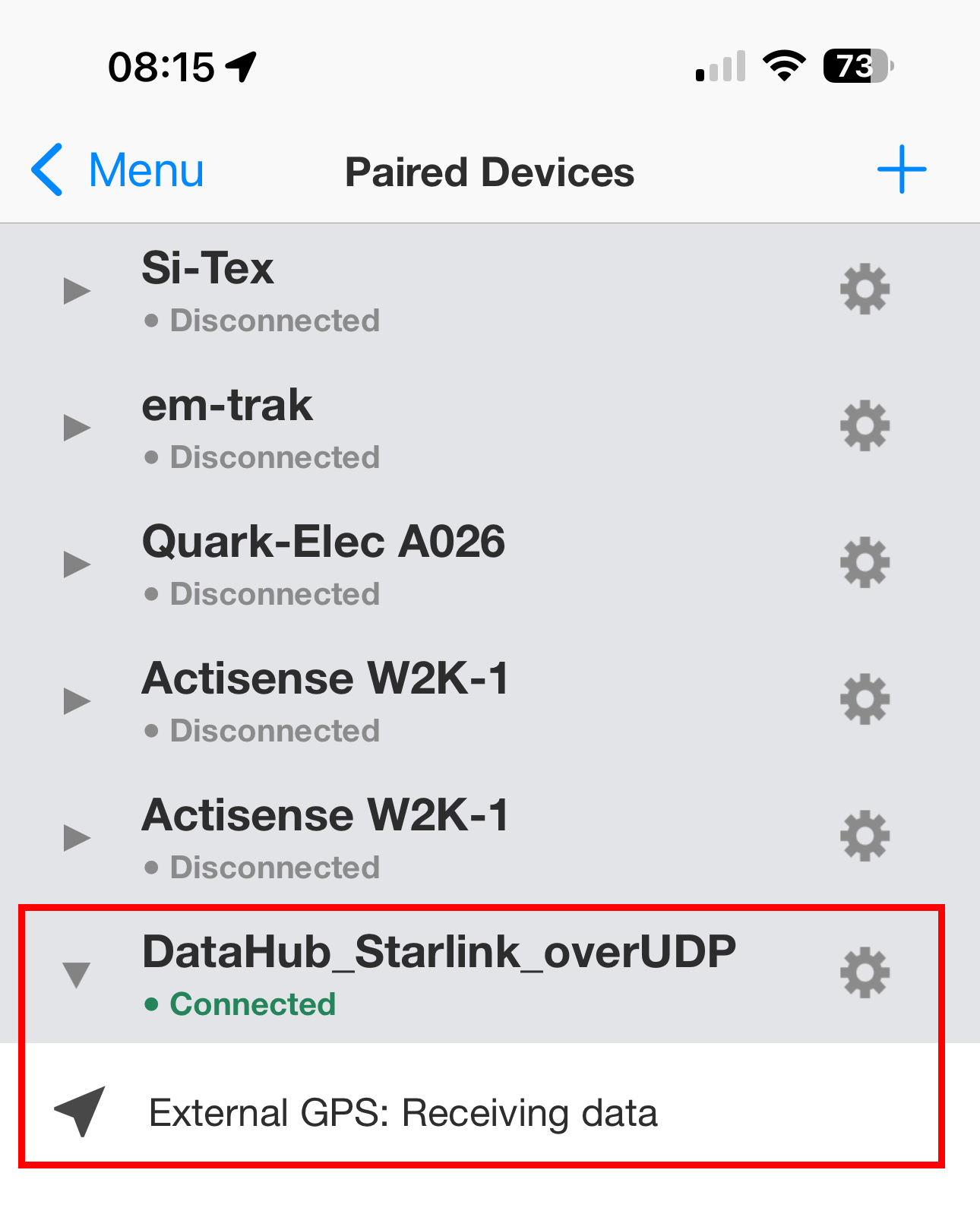
You should now be able to see the new active device receiving GPS positions from the paired Datahub:
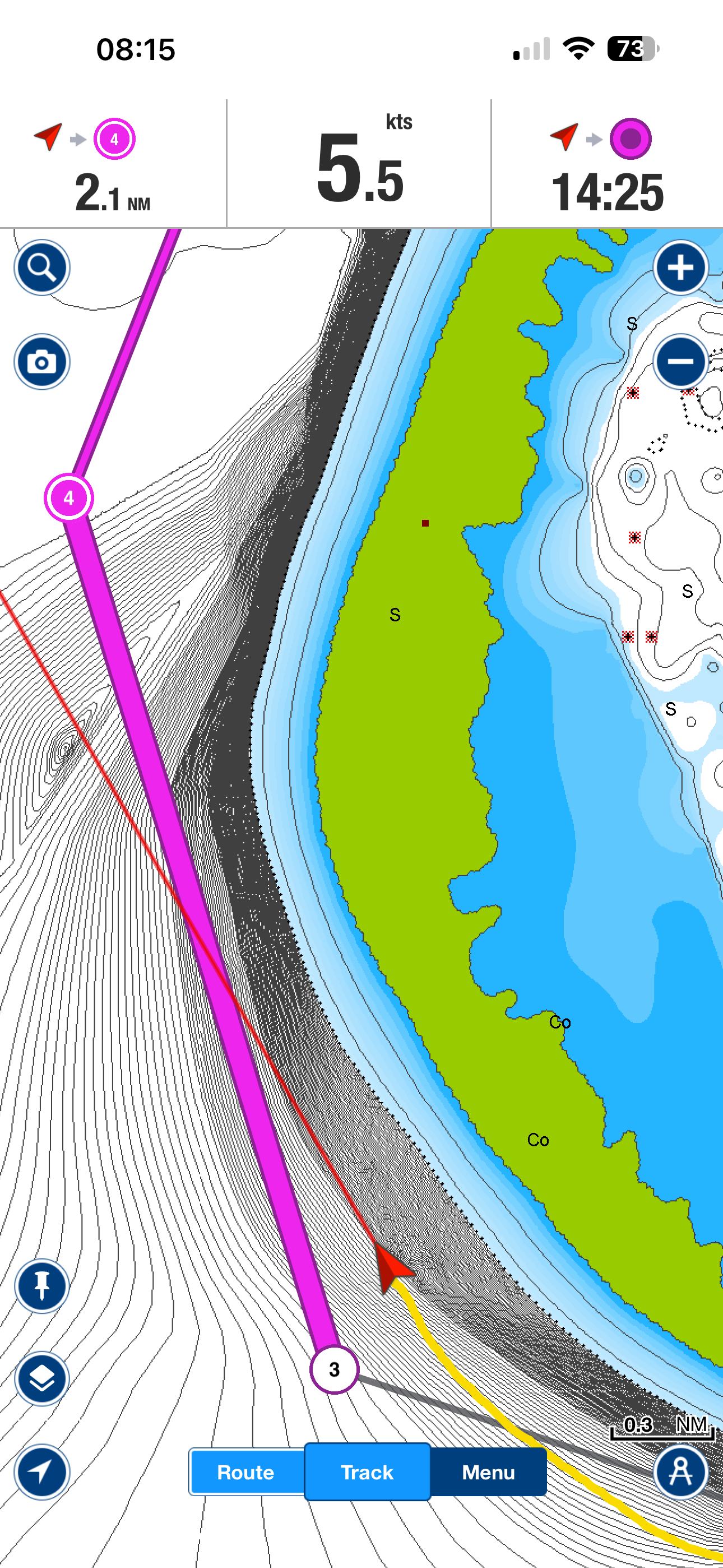
9.8 You are now ready to navigate using Navionics using Starlink Positioning over Datahub
Remarks:
- Navionics cannot disable a paired device
- An active connection cannot be forgotten
- You must break the connection (disable Wi-Fi or switch off DataHub) to remove it
10. OpenCPN Configuration (Step-by-Step)
10.1 Disable Internal GPS
- Uncheck Built-in GPS in OpenCPN
OR - Disable phone/tablet Location Services (see item 8.1)
This ensures OpenCPN uses only Starlink-derived position data.
10.2 Network Setup
- Ensure your device is connected to the DataHub Wi-Fi
- Not the Starlink Wi-Fi
10.3 Add Network Connection
- Open OpenCPN
- Go to: Options → Connections
- Add a new connection:
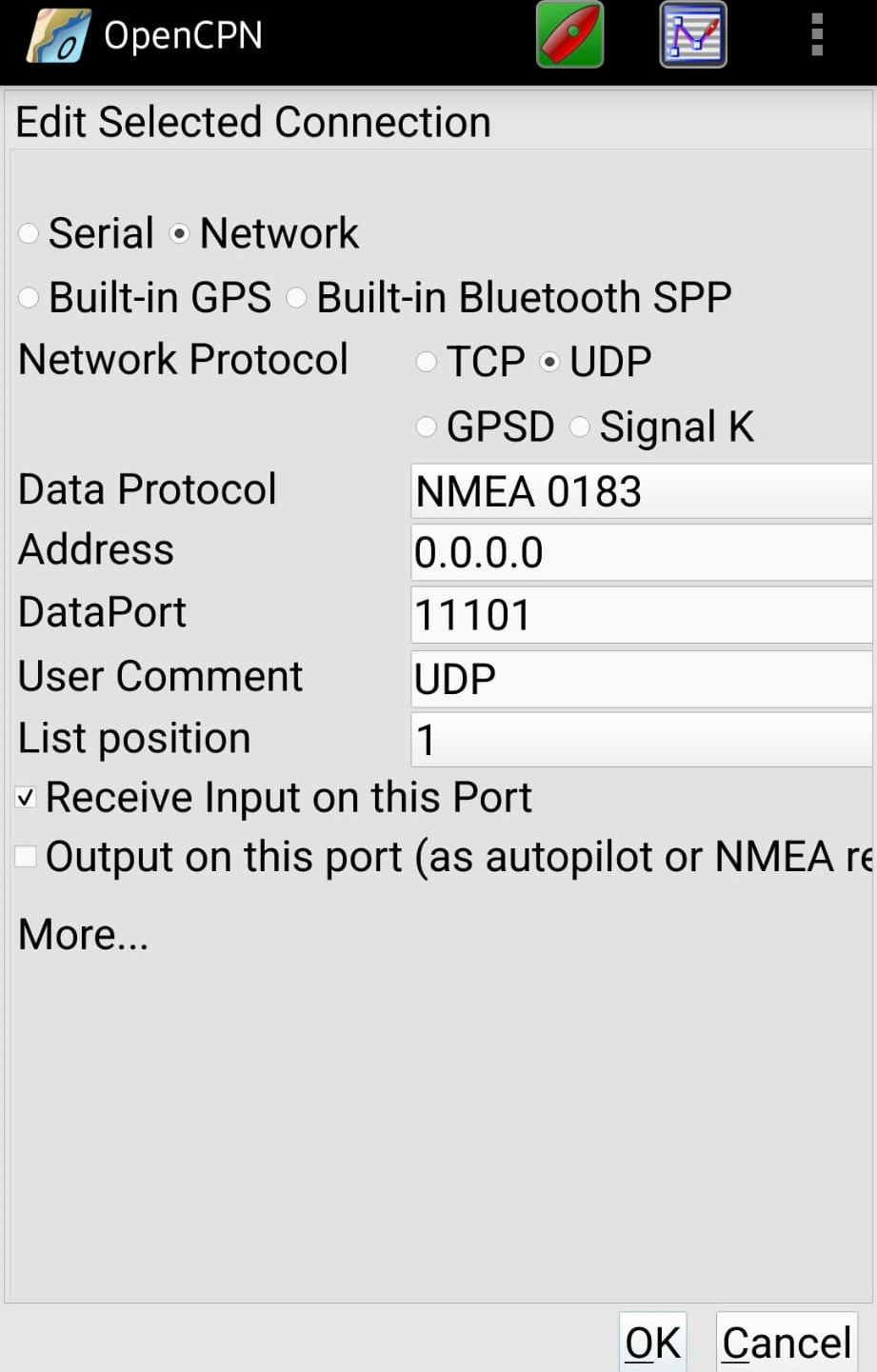
- Protocol: UDP (recommended)
- Address: 0.0.0.0
- Port:
11101 - Input only
- Enable
OR
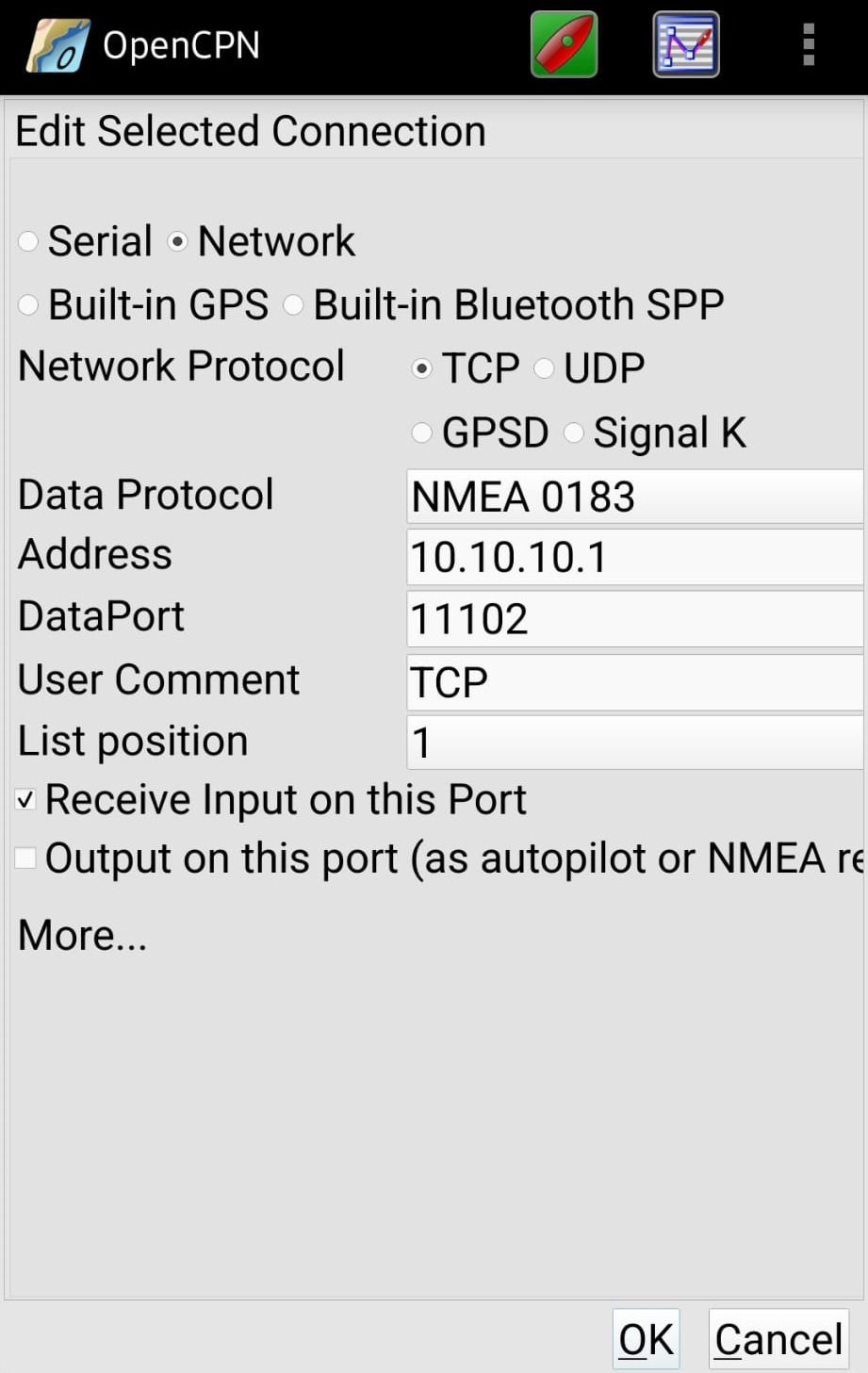
- Protocol: TCP (alternative)
- Address: 10.10.10.1
- Port:
11102 - Input only
- Enable
10.4 Go to Settings → Connections and make sure you are only selecting Datahub as the GPS source (UDP or TCP)
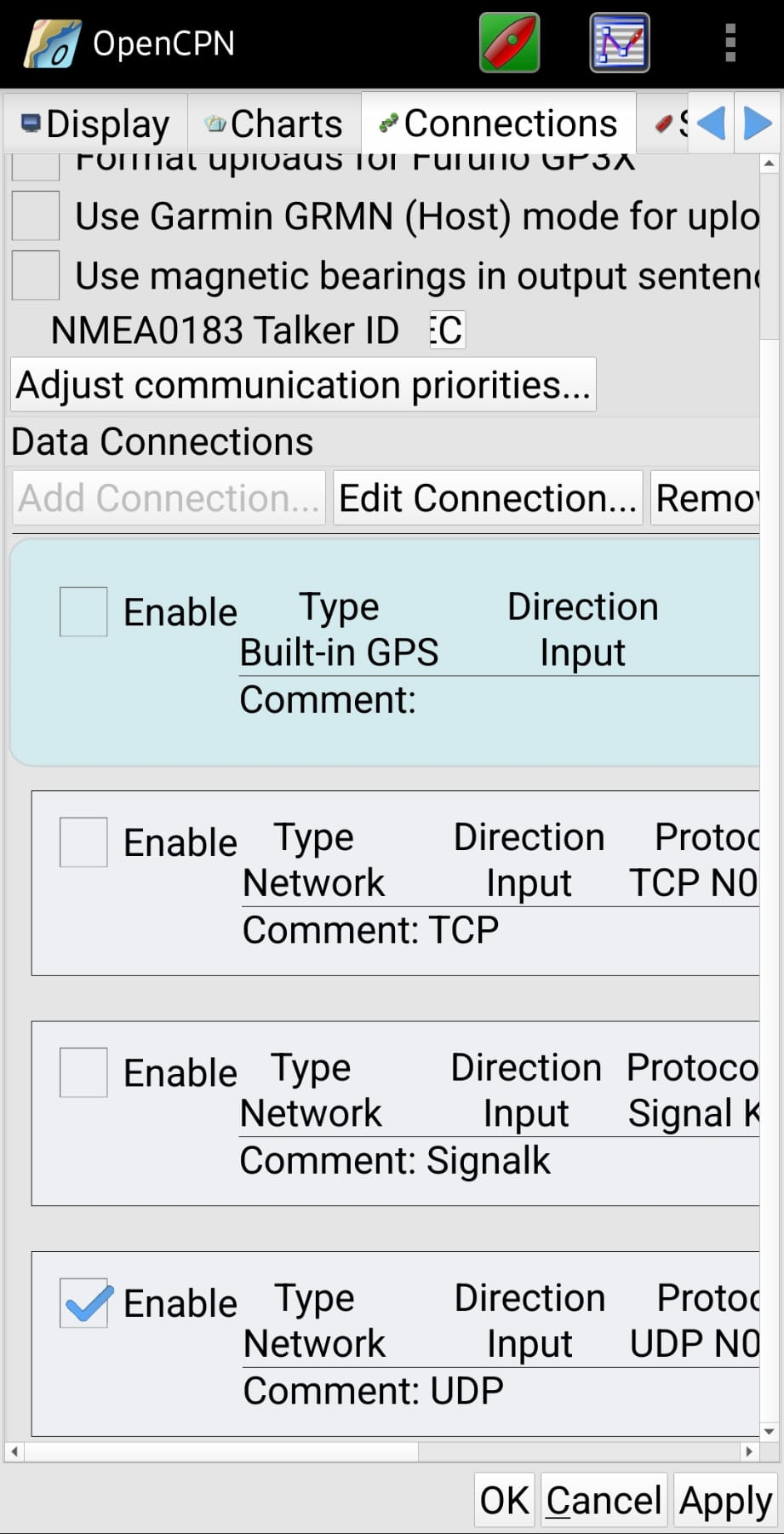
10.5 You are now ready to navigate using OpenCPN with Startlink Positionig over Datahub
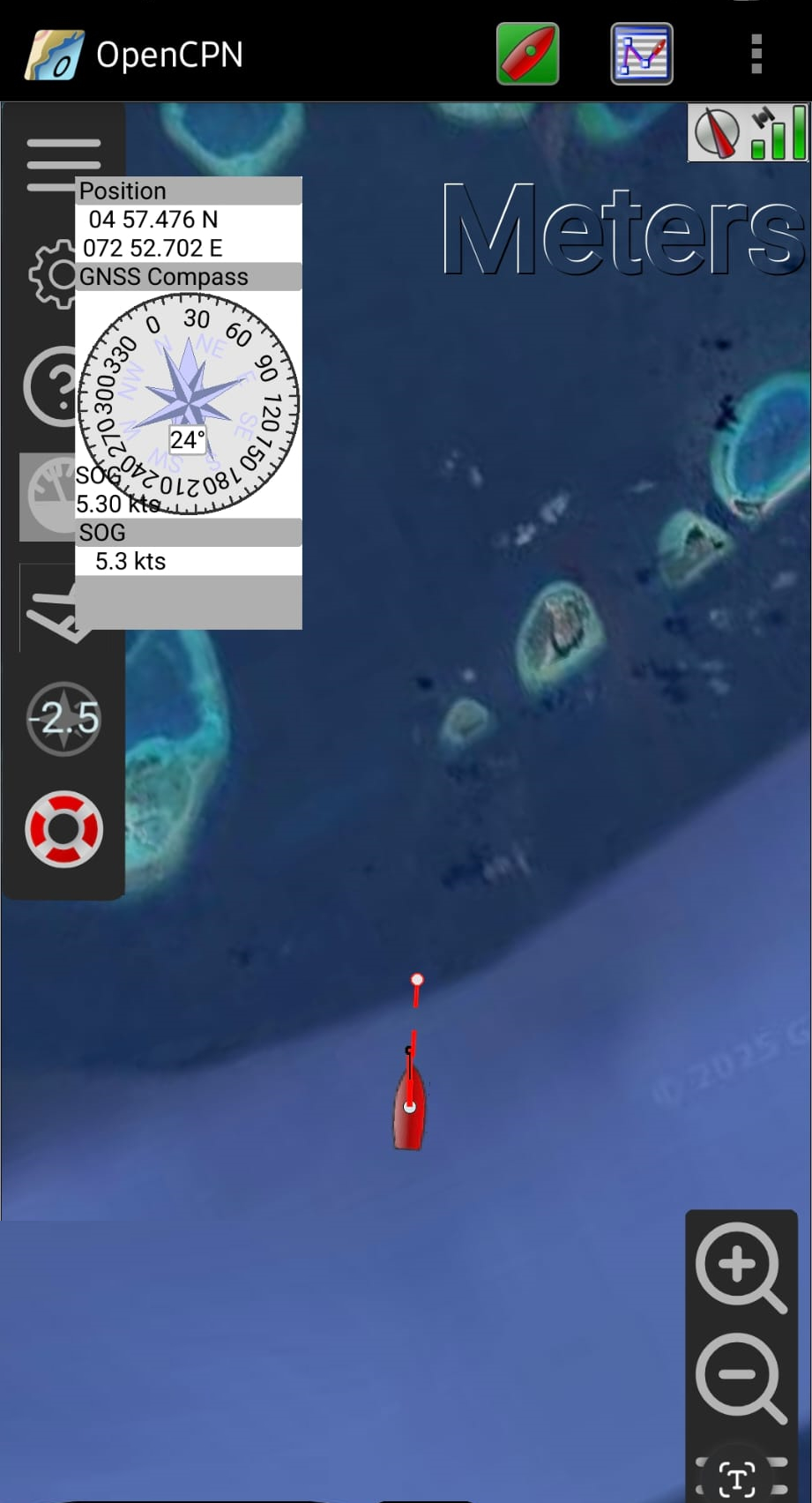
11. Technical Details – NMEA Sentences & PGNs
11.1 NMEA 0183 (Wi-Fi – UDP/TCP)
The DataHub outputs:
RMC– Recommended Minimum Navigation DataGGA– Fix dataGLL– Geographic position- ‘GSA’ - Satellite Quality and Signal Dilution of Precision
- ‘GSV’ - Number of Satellites in View
- ‘PSTAR’ - Starlink Status Information (Online / Offline / Estimate vs Actual Position)
These are consumed by:
- OpenCPN
- Navionics
- Mobile navigation apps
Update rate:
- Internal dish polling: configurable (2–10s)
- Output rate: 1 Hz
- Intermediate values use dead-reckoning interpolation
11.2 NMEA 2000 PGNs (Backbone)
The following PGNs are transmitted:
| PGN | Description |
|---|---|
| 129029 | GNSS Position Data |
| 129025 | Position, Rapid Update |
| 129026 | COG & SOG, Rapid Update |
| 129033 | Local Time Offset |
| 126992 | System Time |
Note: PGN 129033 is particularly useful for older Raymarine systems that rely on network-provided time information.
12. Operational Notes & Best Practices
- Use Starlink Positioning Exclusively in the Starlink app when GPS spoofing is suspected
- Always compare position with:
- Radar
- Visual fixes
- Depth contours
- Switch back to certified GNSS when stable
13. Summary
This setup provides a robust, multi-path fallback navigation solution using:
- Starlink positioning
- PredictWind DataHub
- Standard NMEA interfaces
It has been tested on:
- Modern and legacy chartplotters
- OpenCPN
- Navionics mobile apps
While not a replacement for certified GNSS, it significantly improves navigation resilience in GPS-challenged environments.